
How does the extended KSeF integration work?
Learn how IC Project integrates with KSeF. Download invoices, create costs and revenues, and work with all your data in one system.
How does the KSeF module work in IC Project?
Managing purchase and sales invoices from KSeF in IC Project
The KSeF module in IC Project lets you work with invoices downloaded directly from Poland's National e-Invoicing System. You can download purchase and sales invoices, analyse their data, download files and quickly use them to create project costs or revenues.
1. Opening the KSeF module
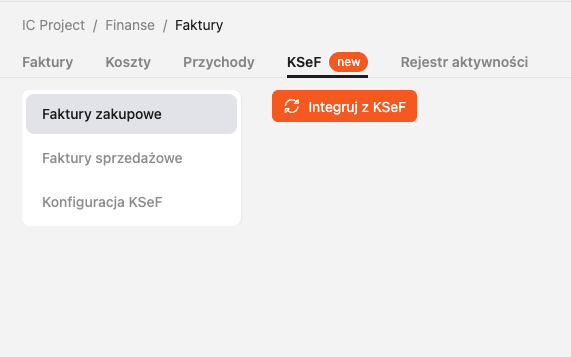
Select Finance in the left-hand menu, then click the new KSeF tab.
By default, the KSeF tab is available only to account administrators. An administrator can adjust access to this module in permission management.
2. KSeF module permissions
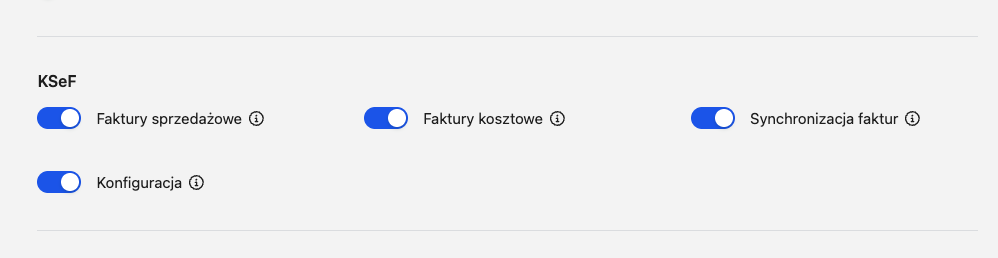
Permission management includes a new section for KSeF. It lets you specify which users can access the module and which actions they can perform.
This gives you more control over invoice management and lets you tailor access to each person's role in the company.
By default, only the administrator of the entire organisation's account has access to the KSeF tab in the Finance module. To grant access to an individual user, adjust their permissions in the module described above.
3. The KSeF module view
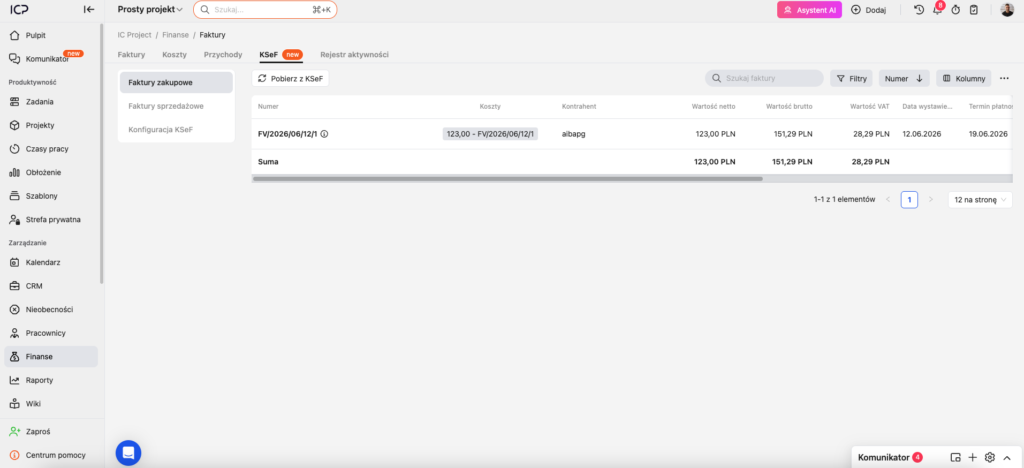
The KSeF tab has three main sections:
- Purchase invoices — expense invoices downloaded from KSeF.
- Sales invoices — sales/revenue invoices downloaded from KSeF.
- Configuration — where you connect IC Project to KSeF using a token.
The configuration section connects your IC Project account to the National e-Invoicing System. Before you can download invoices, the integration must be active and successfully verified.
4. Downloading purchase invoices from KSeF
Open Purchase invoices and click Download from KSeF.
Select the date range for the invoices you want to download. The system will retrieve all purchase invoices available in KSeF for that period.
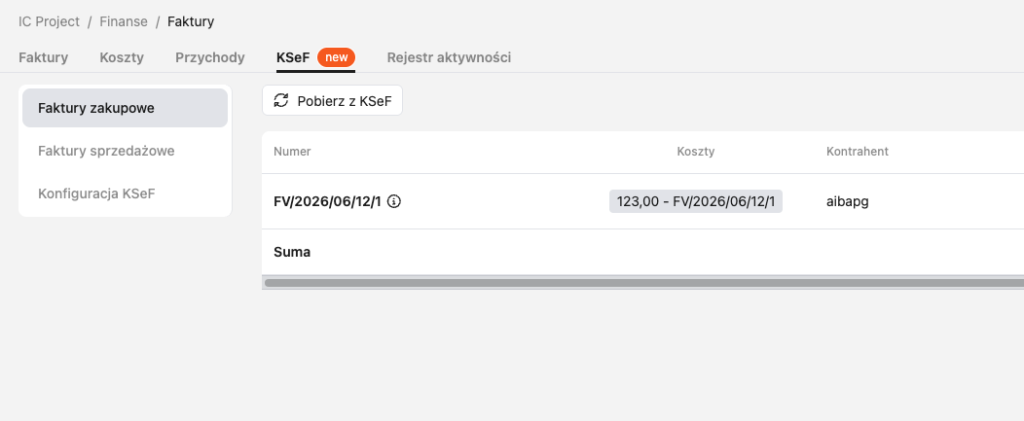
After a few seconds, the invoices will appear in the list. The view includes:
- invoice details,
- amounts,
- the KSeF number,
- dates,
- an option to download the invoice file.
You do not need to transfer data manually from external systems or log in to KSeF separately to check basic invoice information.
5. Creating a cost from a purchase invoice
A key feature of purchase invoices is the ability to create a cost quickly.
Click Add cost next to the selected invoice.
The system opens a form for creating a new cost. Some fields are filled in automatically from the invoice to reduce manual data entry.
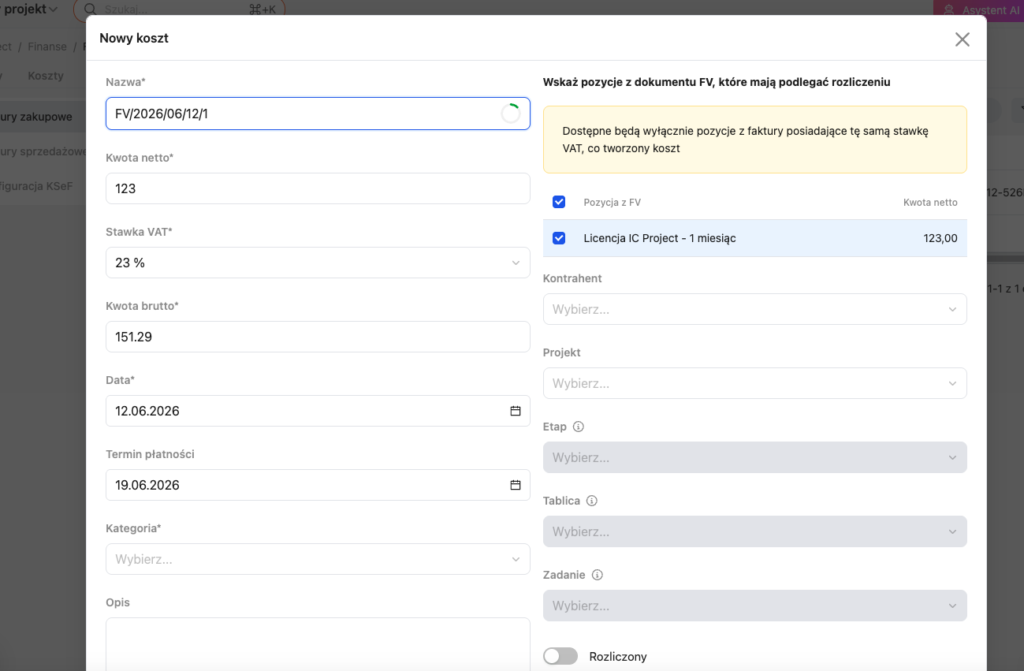
In the form, you can:
- check the data taken from the invoice,
- change or complete selected information,
- remove data you do not want to include in the cost,
- choose a cost category,
- assign the cost to the appropriate project.
You can assign a cost to the whole project or to a more specific level, such as a stage, board or individual task. This places the cost exactly where it belongs.
6. Selecting invoice items
When adding a cost, you can decide which invoice items to include.
This is useful when one invoice covers several areas, projects or tasks. Select one, two or several specific items, and the form will update automatically.
You can therefore create a cost for only part of an invoice without recalculating the amounts manually.
7. Linking the cost to the invoice and contractor
Once you add a cost, its link appears directly in the invoice list, in the Costs column.
You can immediately see which invoices have already been recorded as costs in IC Project and which still need attention. A contractor is also automatically added to the CRM module for each downloaded invoice, and the invoice is linked to that contractor. The cost form also shows the contractor selected from the downloaded invoice.
To add another cost to the same invoice, click the three-dot icon on the right and choose the option to create another cost.
This lets you split one invoice into several costs and assign them to different places in the system.
8. Sales invoices in KSeF
The Sales invoices section works in a similar way to purchase invoices.
Click Download from KSeF and select a date range to retrieve sales invoices. Downloaded invoices appear in the list with key details, their KSeF number, dates, amounts and an option to download the file.
The main difference is that sales invoices can be used to create revenues.
Choosing the option to add revenue opens a form based on the invoice data. As with costs, many fields are completed automatically, and you can change or add information as needed.
You can assign the revenue to the appropriate project or a specific part of it to keep full control of its financial results.
Remember that IC Project also lets you issue invoices and send them to KSeF.
9. What does the extended KSeF integration offer?
The extended KSeF integration helps you process financial documents faster and reduces manual data entry.
In practice, you get:
- one place to manage purchase and sales invoices,
- quick invoice downloads from KSeF for a selected period,
- the ability to download invoice files directly from IC Project,
- automatic data entry when creating costs and revenues,
- cost and revenue assignment to projects, stages, boards or tasks,
- the ability to create costs from specific invoice items,
- visible links between invoices and their costs or revenues,
- the ability to issue invoices in the system and send them to KSeF,
- greater control over project finances without working in several separate systems.
KSeF in IC Project therefore does more than download invoices: it supports everyday work with costs, revenues and project settlements.