
Managing service tickets by email
Turn customer emails into service tickets, assign tasks and keep correspondence together in IC Project.
This guide explains how to use Service tickets effectively in IC Project. If your clients report problems, complaints or bugs by email, this module is for you! 🚀
What will you learn?
- ✅ How to turn customer emails into service tickets.
- 🌐 How to integrate contact forms with Service tickets.
- 🛠️ How to manage tickets: assign contractors, change statuses and create tasks.
- 💬 How to keep customer correspondence together.
- 🧑💻 How service ticket operator roles work.
Integrating tickets from different sources
The Service tickets module in IC Project offers two main ways to receive customer requests:
1. Forwarding requests from email
If customers send requests directly to your work email address (IMPORTANT: the email address you use to log in to IC Project), you can easily turn them into IC Project tickets:
- Dedicated email address: Each company using IC Project has its own individual email address for service tickets. You can find it in the Service tickets module.
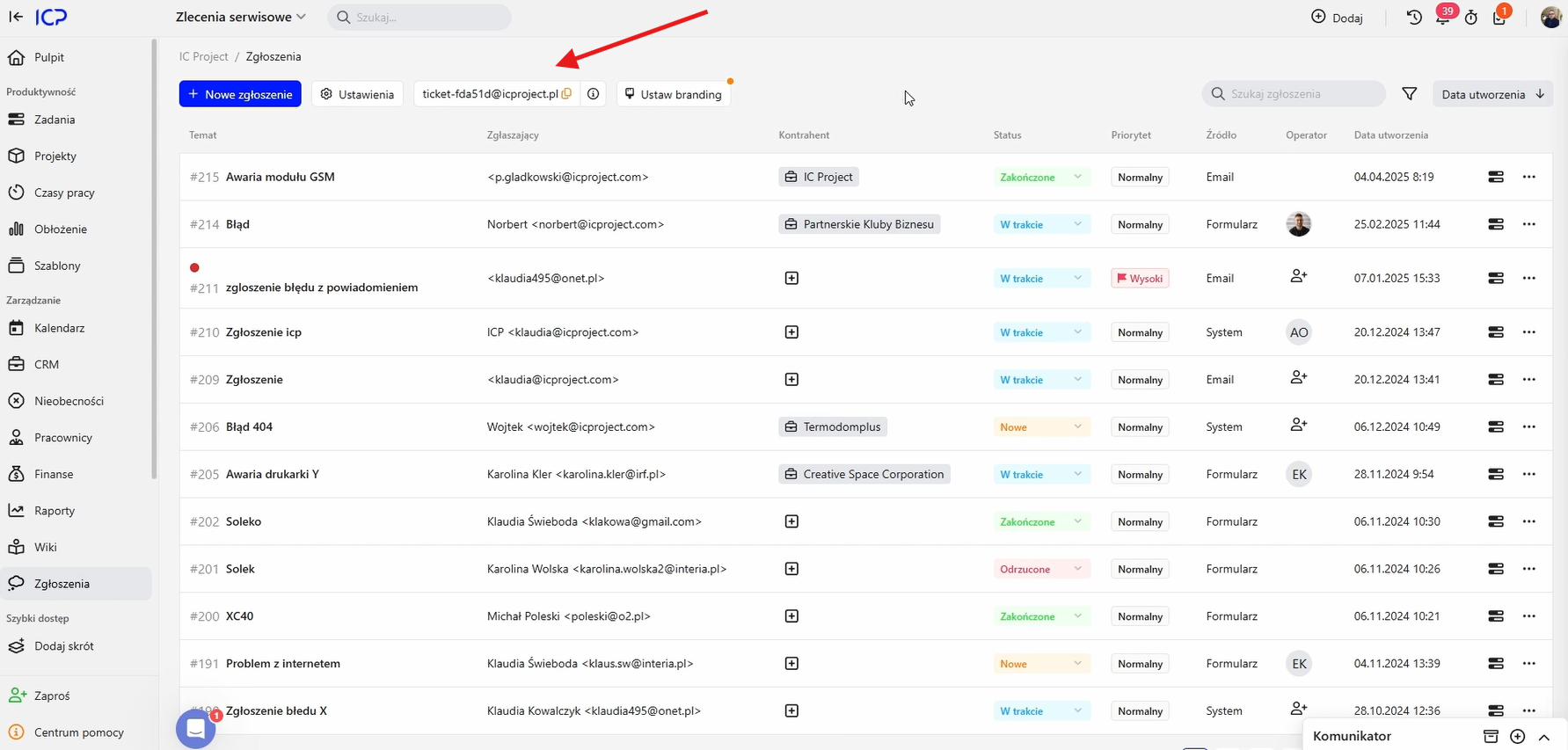
- How does it work? When a customer emails you about a problem, simply forward it to the dedicated address. After a short wait, usually up to a minute, the ticket automatically appears in Service tickets.
2. Integrating your website form
Do you have a contact form on your website? Great!
- Using the email address: Configure the form's “Send” action to use your dedicated IC Project email address.
- Result: When a customer completes the form and clicks “Send”, the ticket automatically appears in IC Project's Service tickets module without further action from you.
Example: a customer submits a ticket
Imagine you are a customer with a problem. You send a message to the dedicated email address: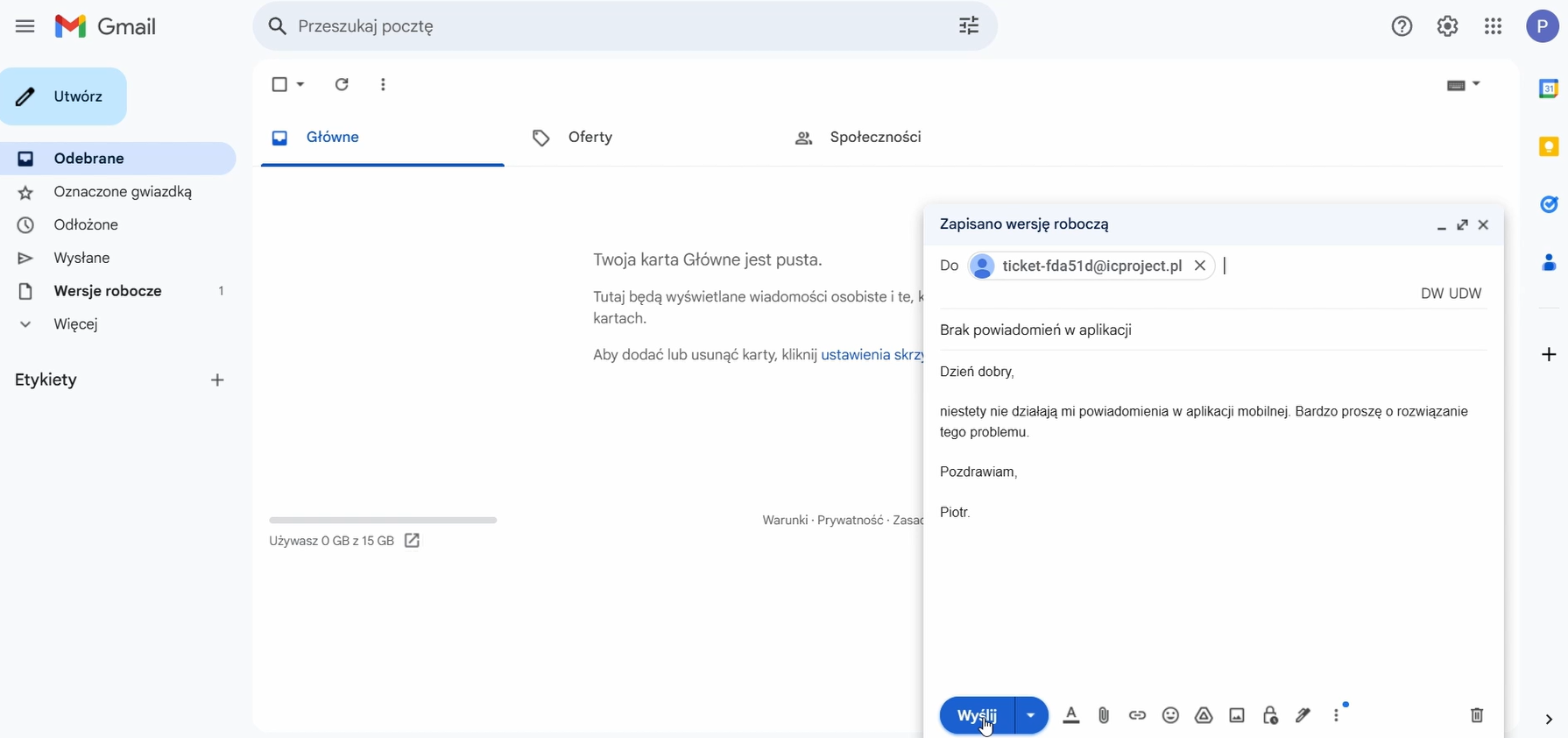
- You send the message…
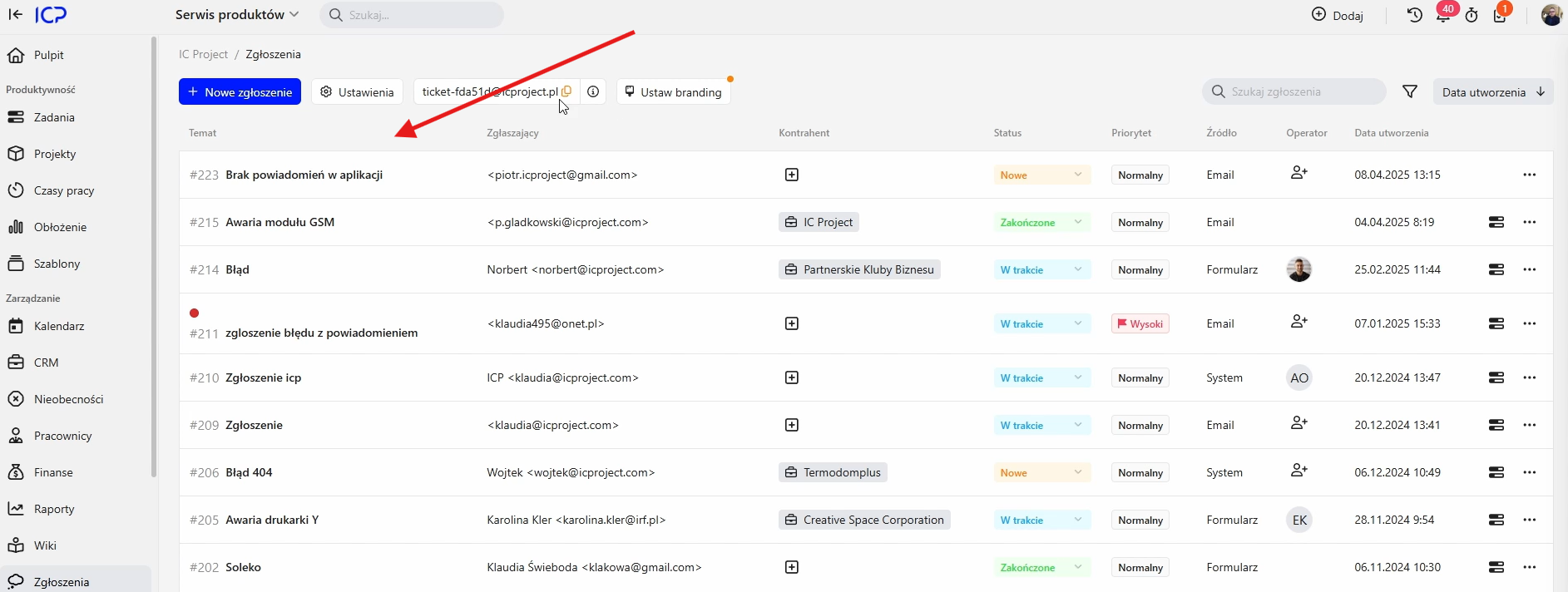
- You refresh the page in IC Project…
- The ticket is now in the system! 🎉
What happens next? Managing and handling the ticket
Once you receive a ticket, you can:
- View it: click the ticket to see its content and details and understand the issue.
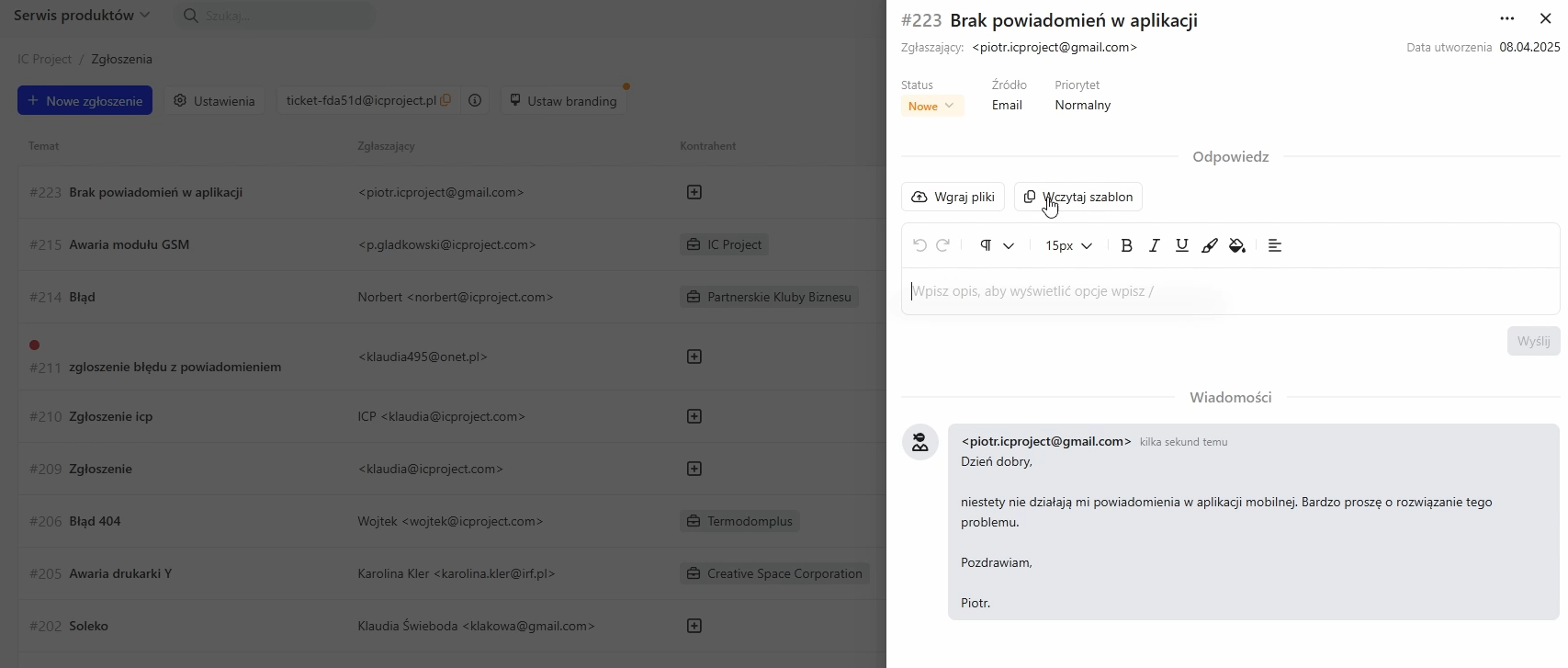
- Assign a contractor: if you know who submitted it, link a contractor from your IC Project CRM database to organise your records.
- Change its status (in the next step): before changing the status, create a task first!
A key step: creating a task for an employee
This is the key step. A ticket describes a problem, while a task defines an action!
- Click the three dots next to the ticket.
- Select Create task.
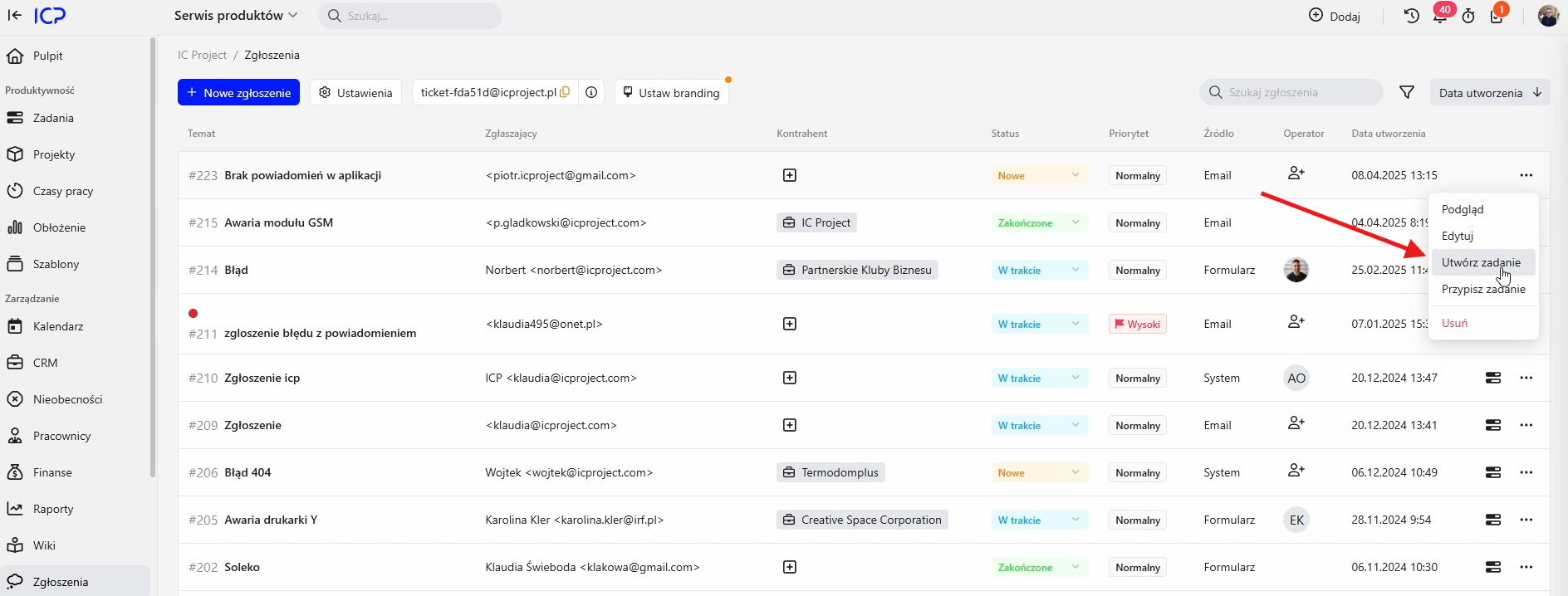
- The service ticket operator — the person managing tickets — creates a task for the employee who will resolve the issue.
- Select the project where the task should be created.
- Assign the person responsible for it.
- Set the deadline.
- Save the task, or open it immediately to view and edit additional settings.
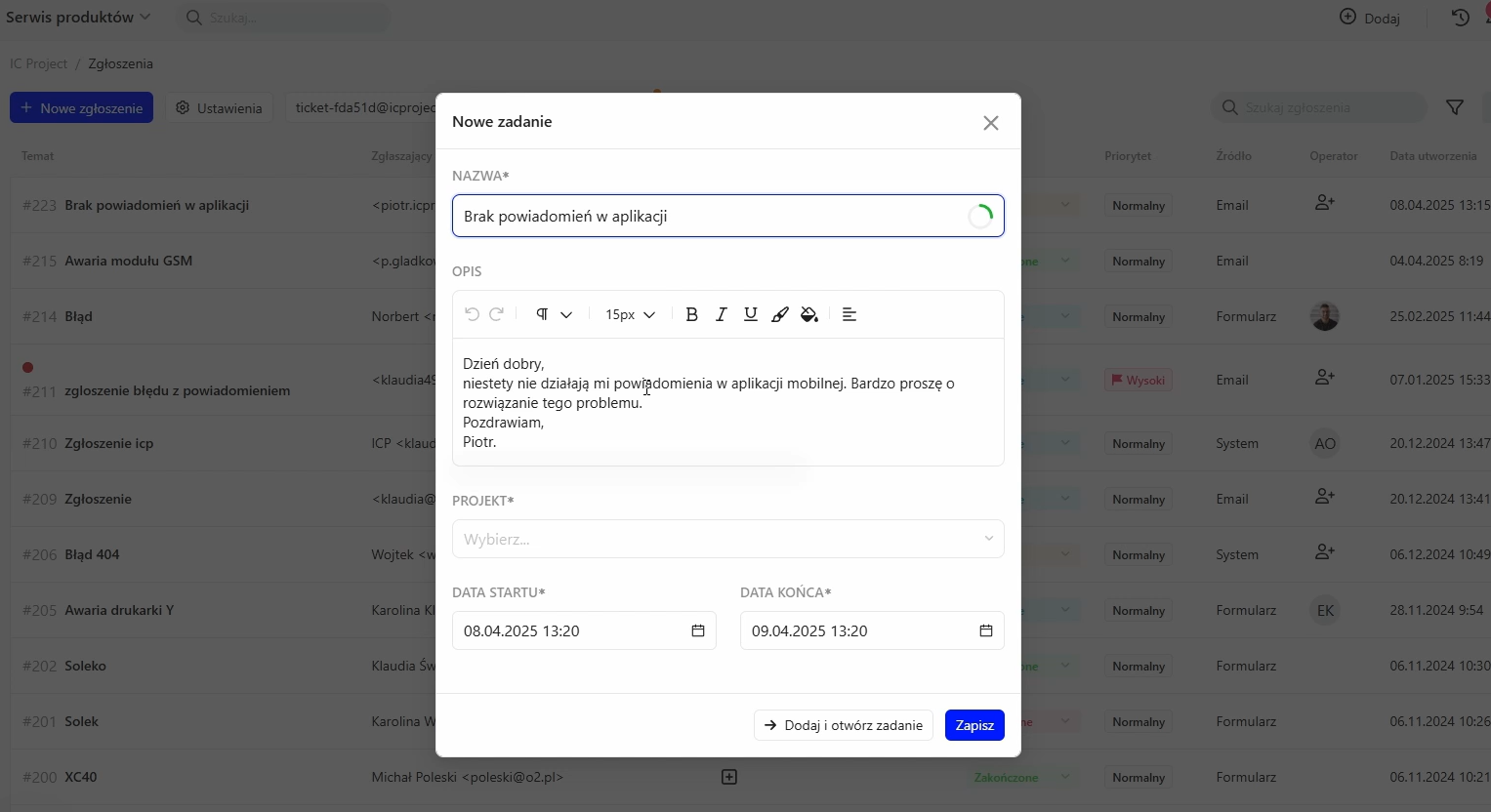
- Notifications: the employee, Damian in this example, receives a notification about the new task.
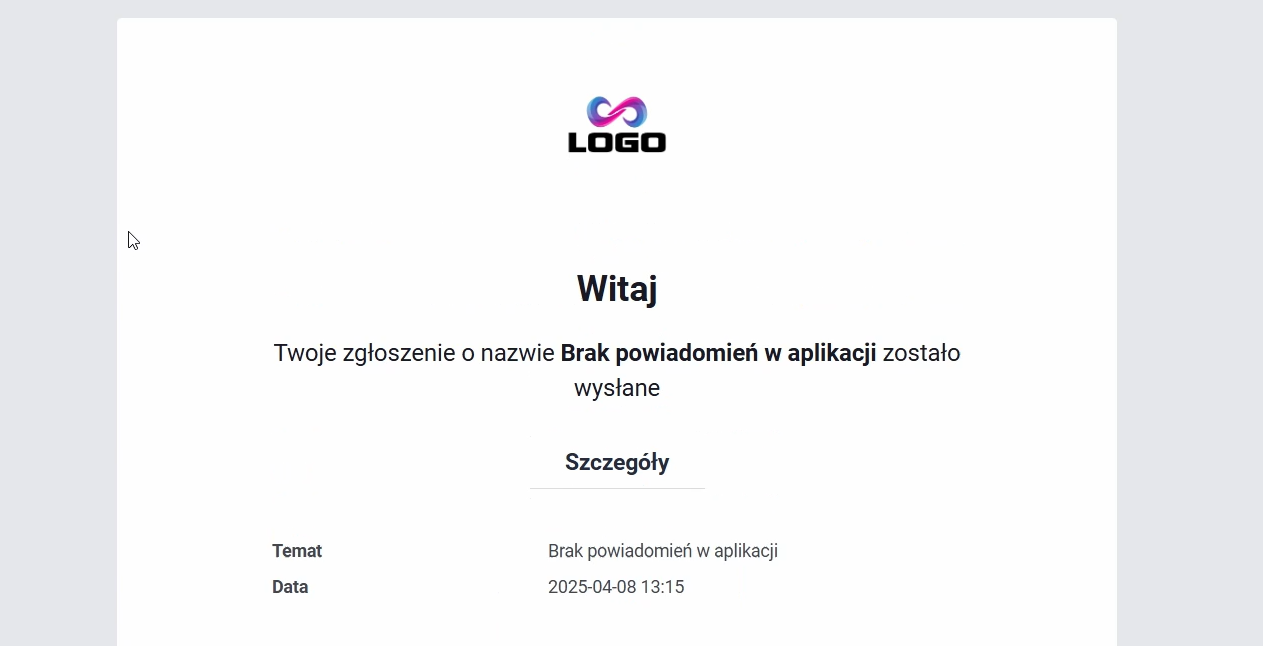
- Customer confirmation: when a customer submits a ticket, they also receive confirmation that it has been received. If they have system access, they can also see their ticket list.
Changing ticket status and communicating with the customer
Once the employee's task has been created, you can change the ticket status:
- “In progress”: indicates that work on the ticket has started.

- Sending a message to the customer:
- Type a message manually.
- Or use IC Project's templates, such as a “Ticket acknowledgement” message.
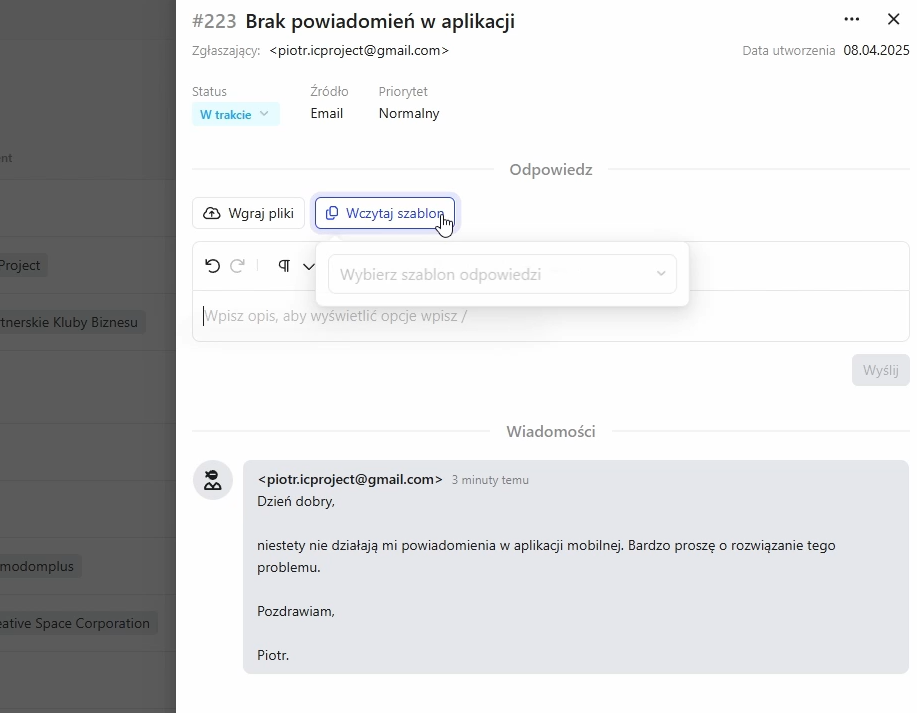
- Keeping correspondence together: if the customer sends additional information, all messages remain in the ticket history, preserving the conversation.
Managing service ticket operators
Larger companies with many IC Project users may have several service ticket operators.
- Who is an operator? A user with Manage tickets enabled in their global permissions. This gives them access to all tickets.
- The operator's role: operators manage incoming tickets and delegate them by creating tasks for the employees responsible for resolving each issue.
- Automatic operator assignment: tickets submitted through forms can be configured to have an operator assigned automatically. For email tickets, you can manually assign the operator responsible for delegating tasks.
Additional ticket management features
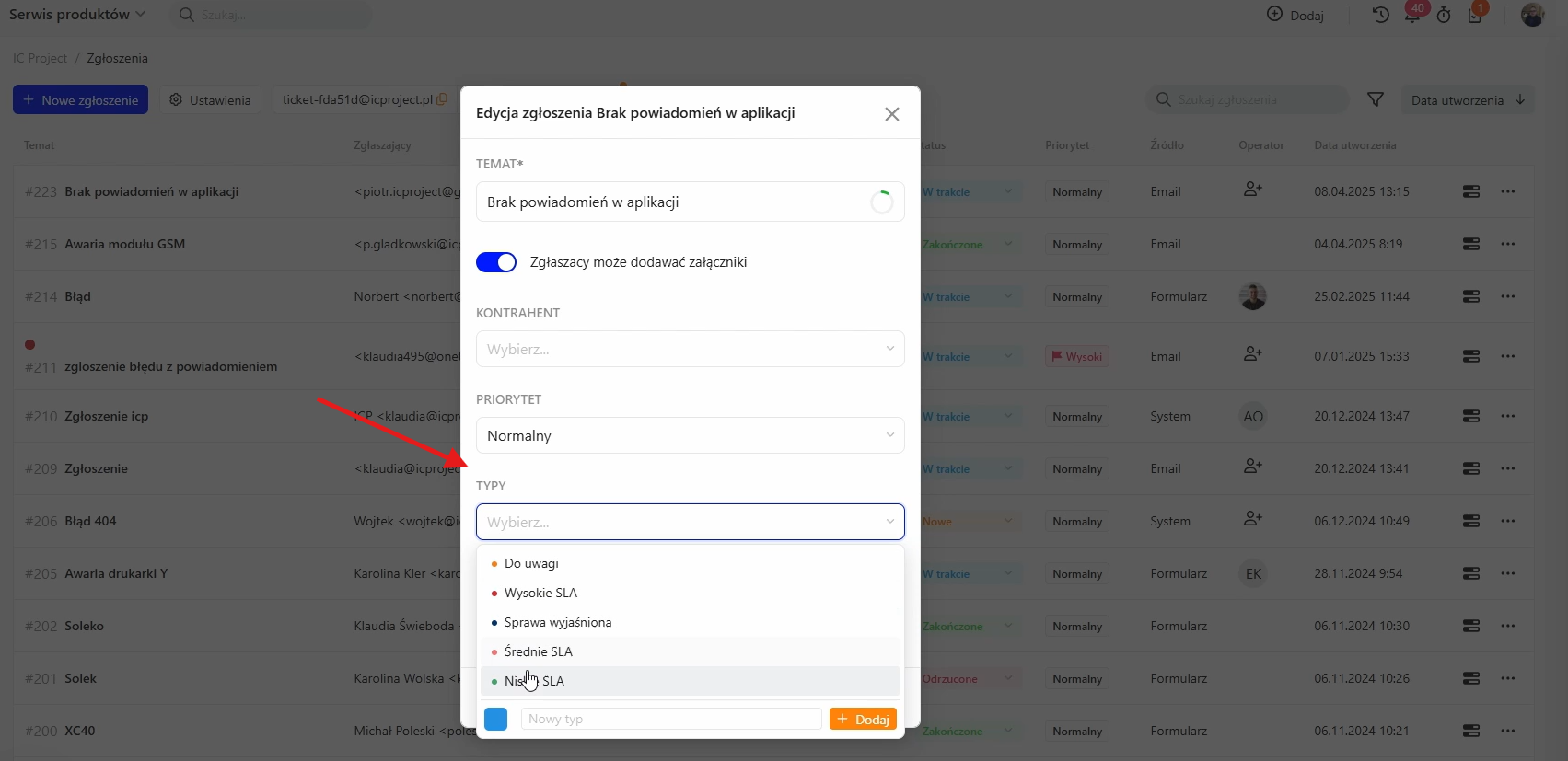
- Ticket type: when editing a ticket, you can assign a type. Types are configurable and can specify an SLA (Service Level Agreement), for example. They can also be used to filter and sort tickets.
- Visual indicators: tickets with employee tasks already created have an icon on the right to make them easier to identify.
We hope this guide helps you make full use of Service tickets in IC Project!