
How do I use custom fields?
Add your own information to projects, tasks, contractors and service tickets.
How to use custom fields in IC Project
Custom fields are one of IC Project's most powerful tools, giving you almost unlimited ways to adapt the system to your needs. Use them to add information, filter data precisely and generate detailed reports. ✨
This article explains how to create and use custom fields in projects, tasks, CRM and service tickets.
1. Where can I find custom fields?
Custom fields are available in the list view of each of these sections. To add or manage them:
Open the list view, for example in Projects.
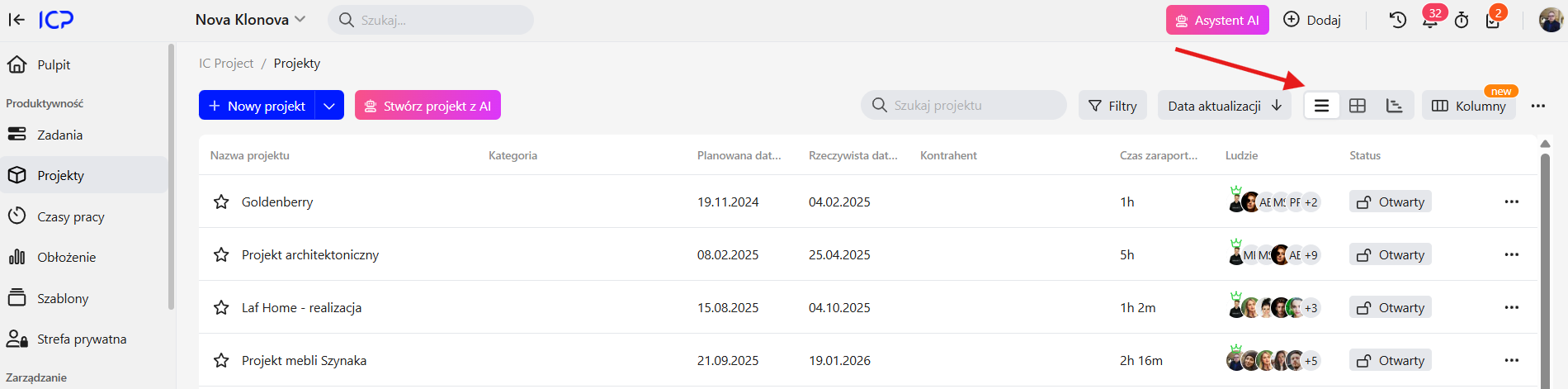
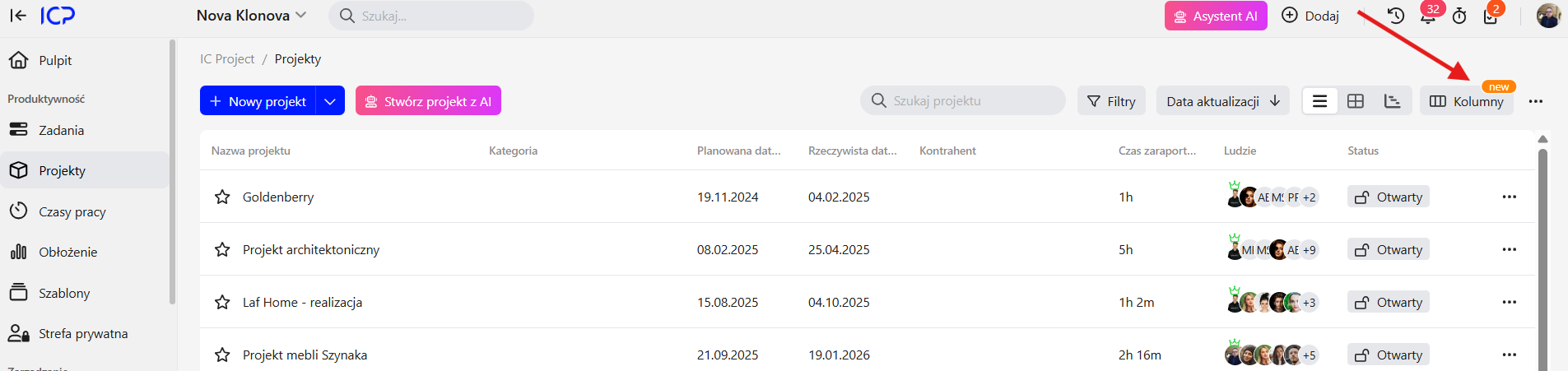
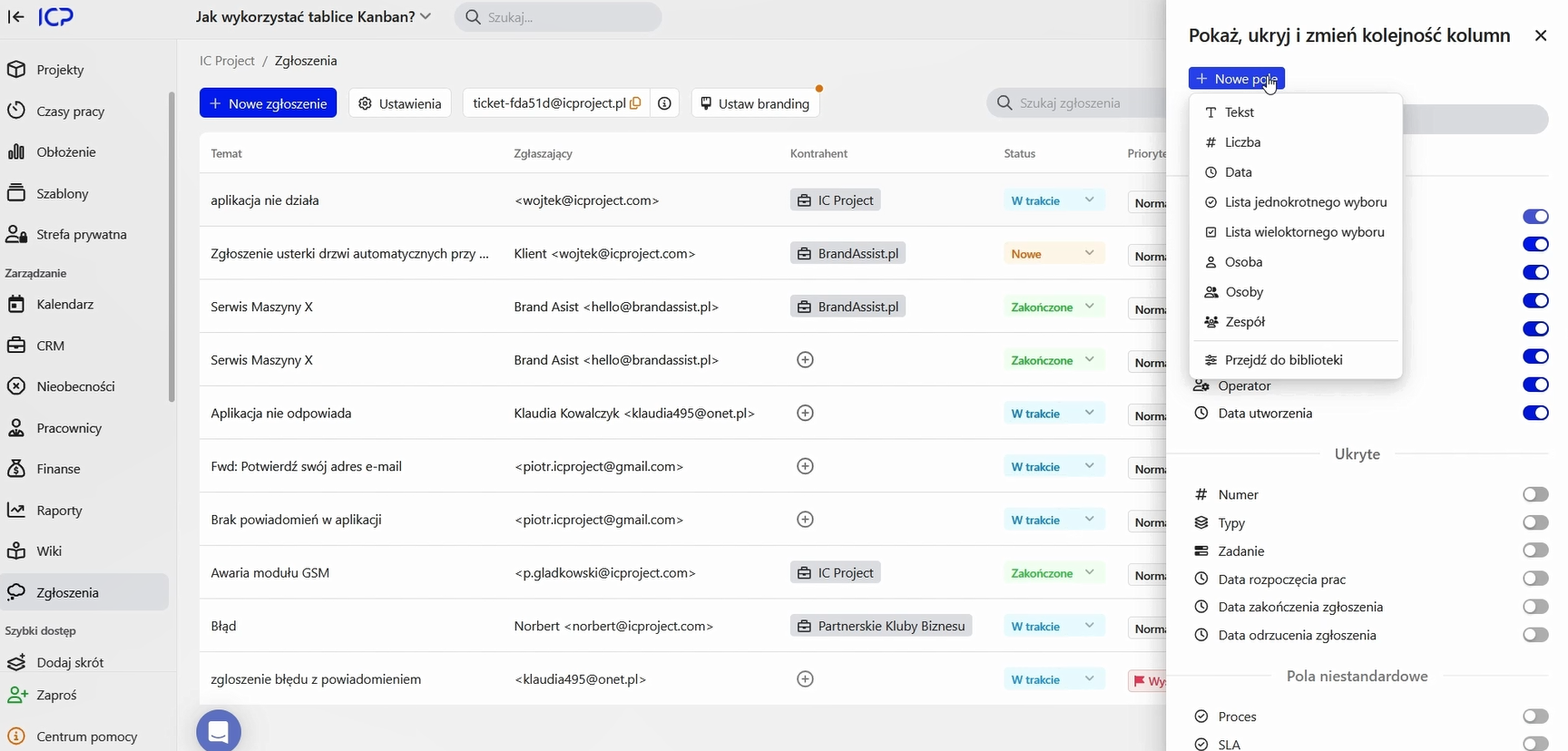
Click Columns in the top-right corner.
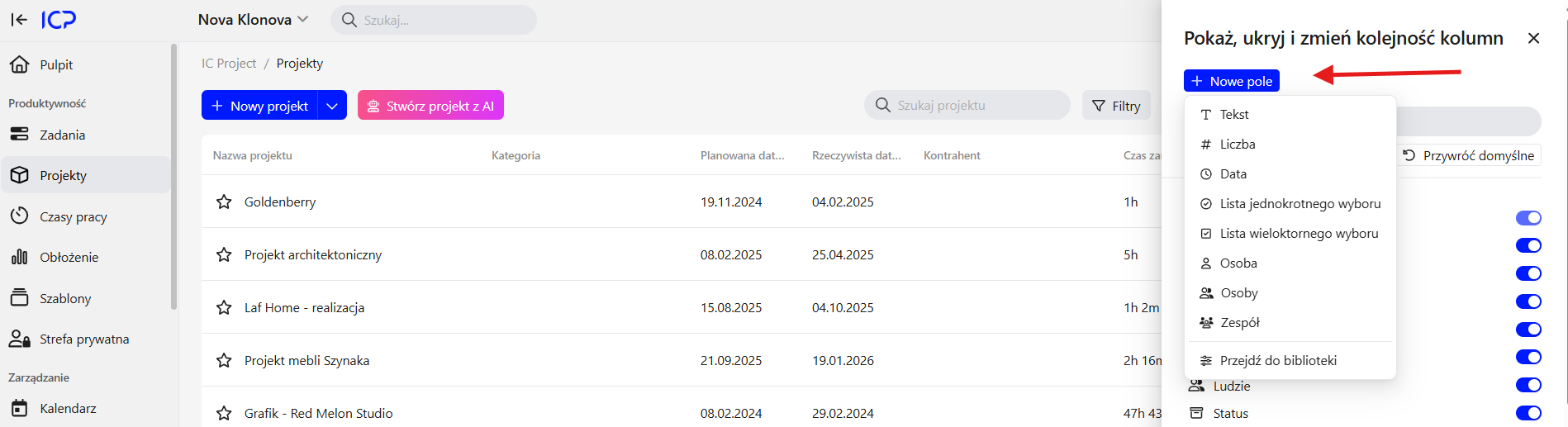
Custom fields work in exactly the same way across all modules! 🚀
2. Types of custom fields
You can create different field types depending on your needs:
Text field 📝 — ideal for addresses, descriptions and additional notes.
Number field 🔢 — enter numeric values such as margins, hours or costs. Set the format to number, percentage or currency.
Date field 📅 — useful for important deadlines or start and end dates.
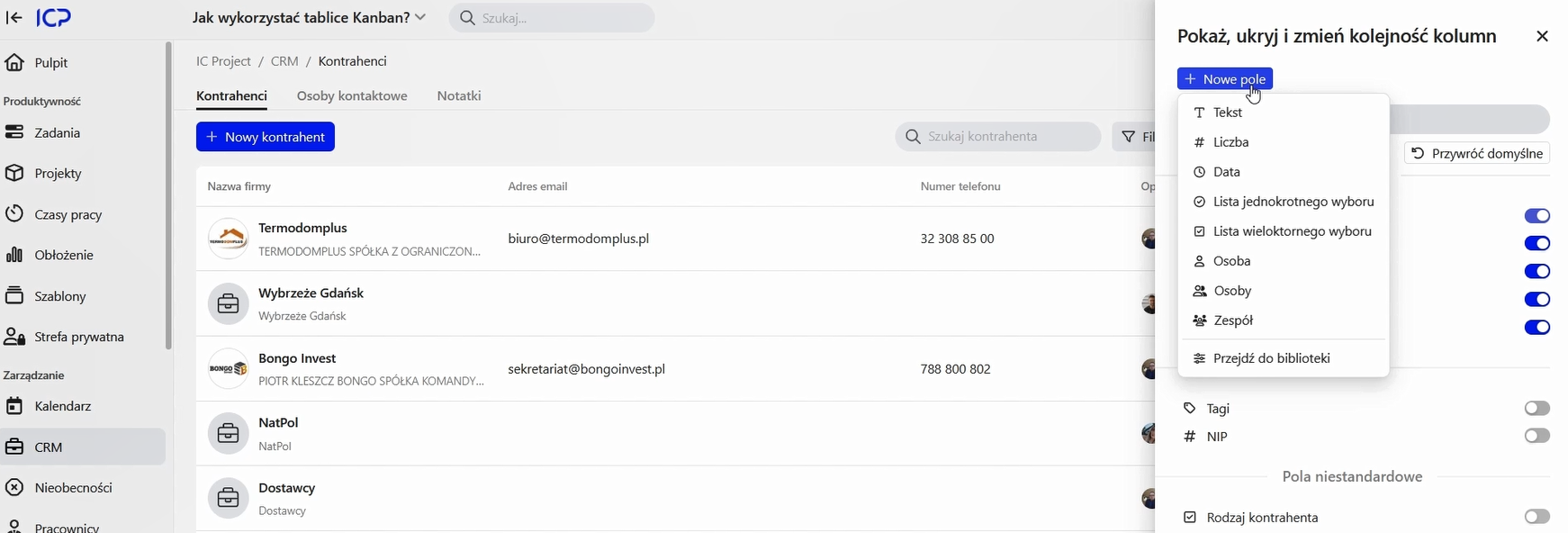
Single-select/multi-select field ✅ — useful for a predefined list of options, such as a contractor's type (supplier, installer).
Person or team field 👤 — assign an additional person, such as a coordinator, responsible for a project or task.
3. Creating and editing custom fields
Let's create a few example fields to see how this works.
Example 1: a text field for location
If your projects take place in different locations, a Location field is ideal.
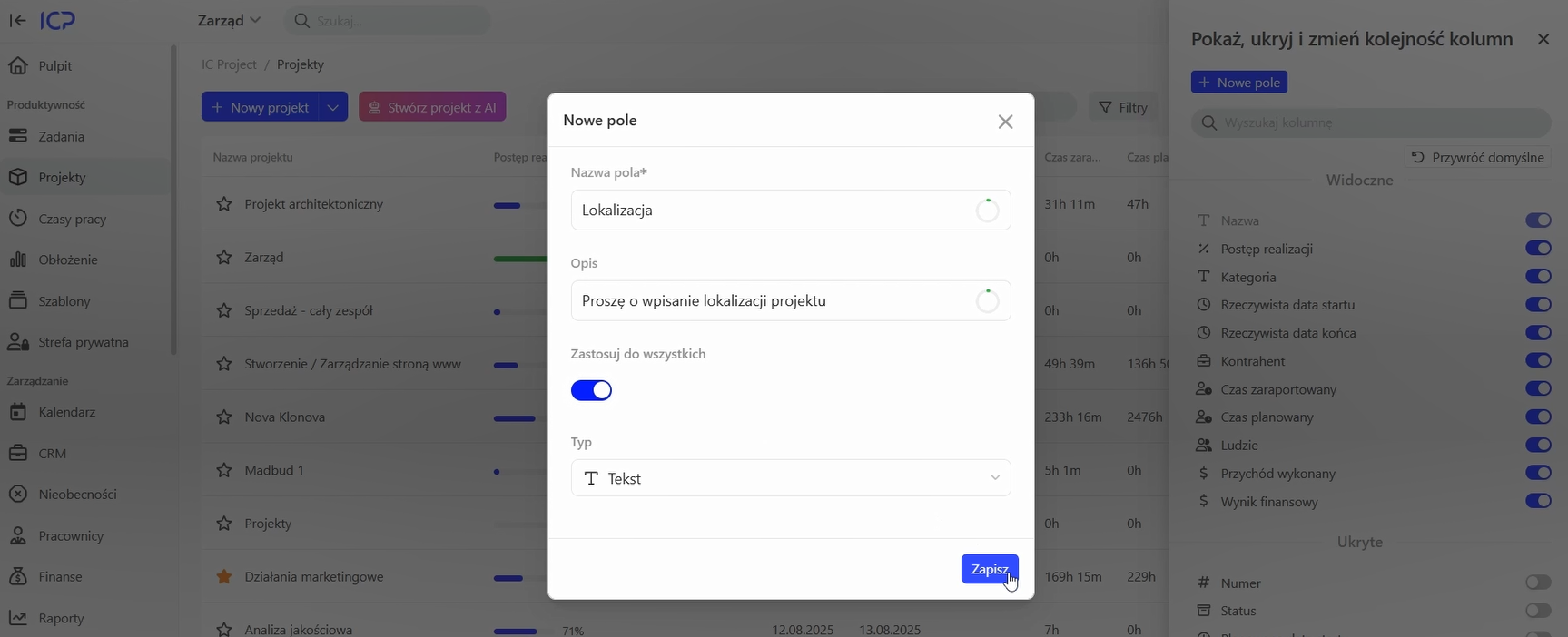
In the columns view, click Create custom field and choose Text.
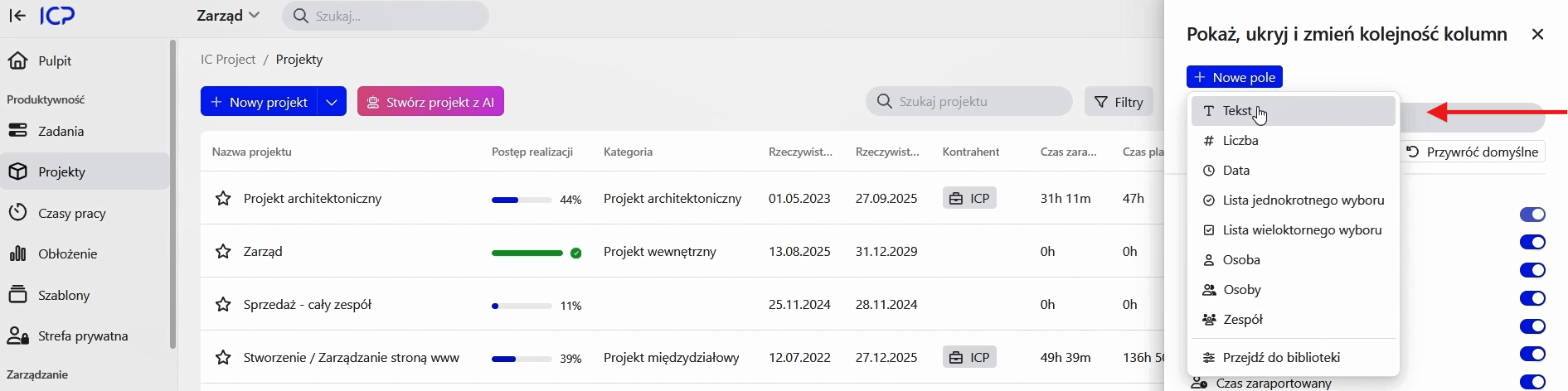
Give it a name, such as Location.
Add a description, such as “Please enter the project location”.
Decide whether the field should appear in just one project or in all projects. Select Apply to all.
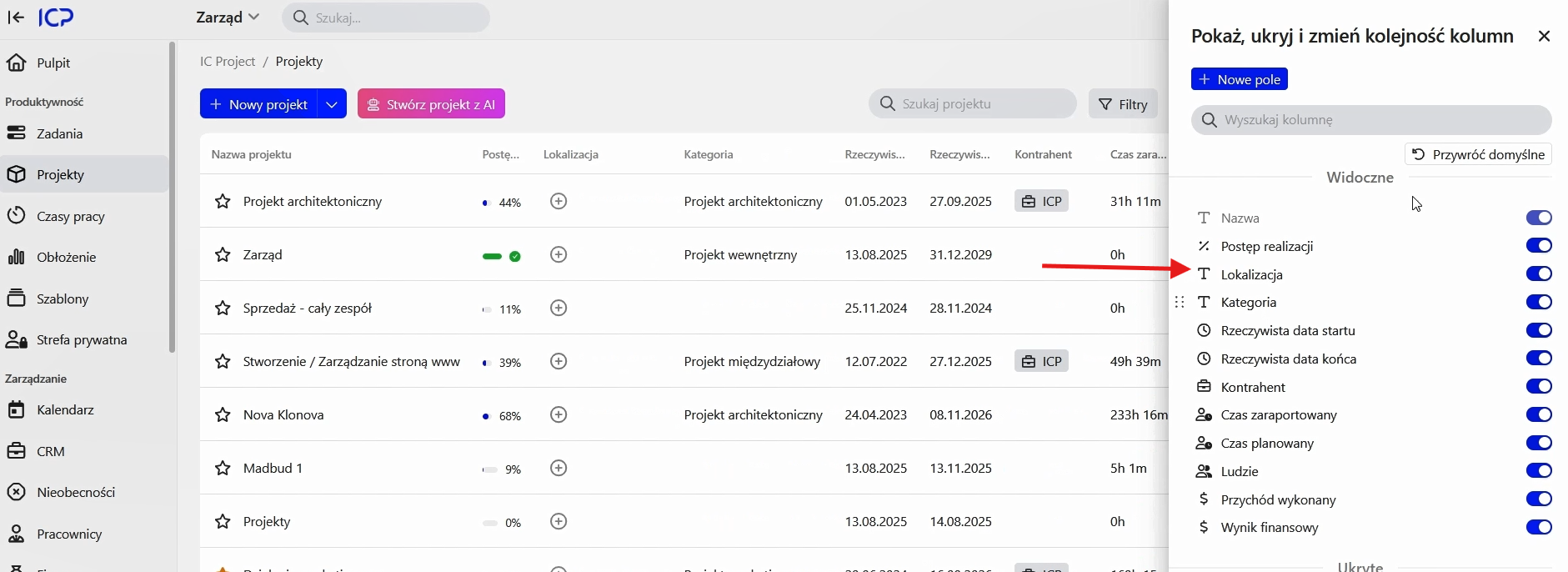
After saving, the new column appears immediately in the list. Drag it to a convenient position.
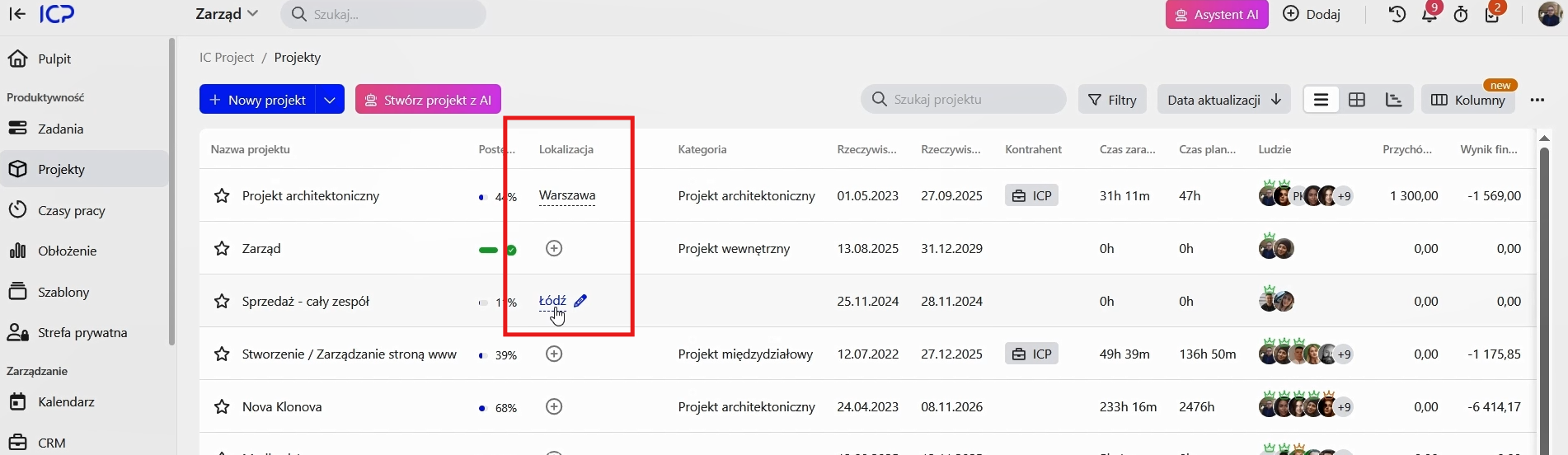
Tip: The column is interactive: you can enter data directly in the list view!
Example 2: a number field for project margin
To track project profitability, add a Margin field.
Choose the Number type.
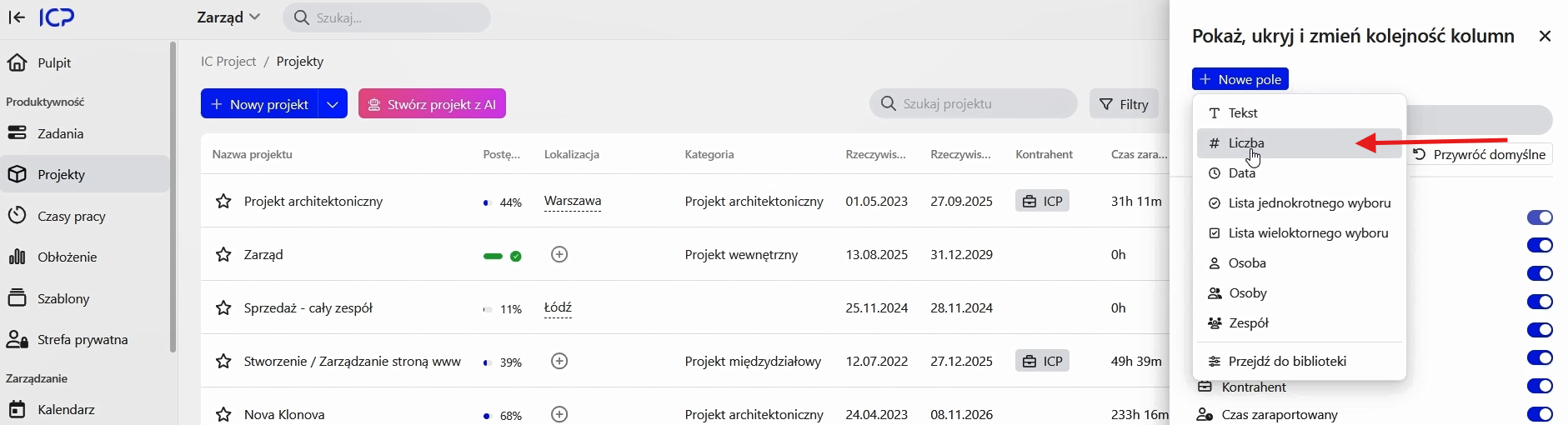
Name the field Margin and select the Currency format.
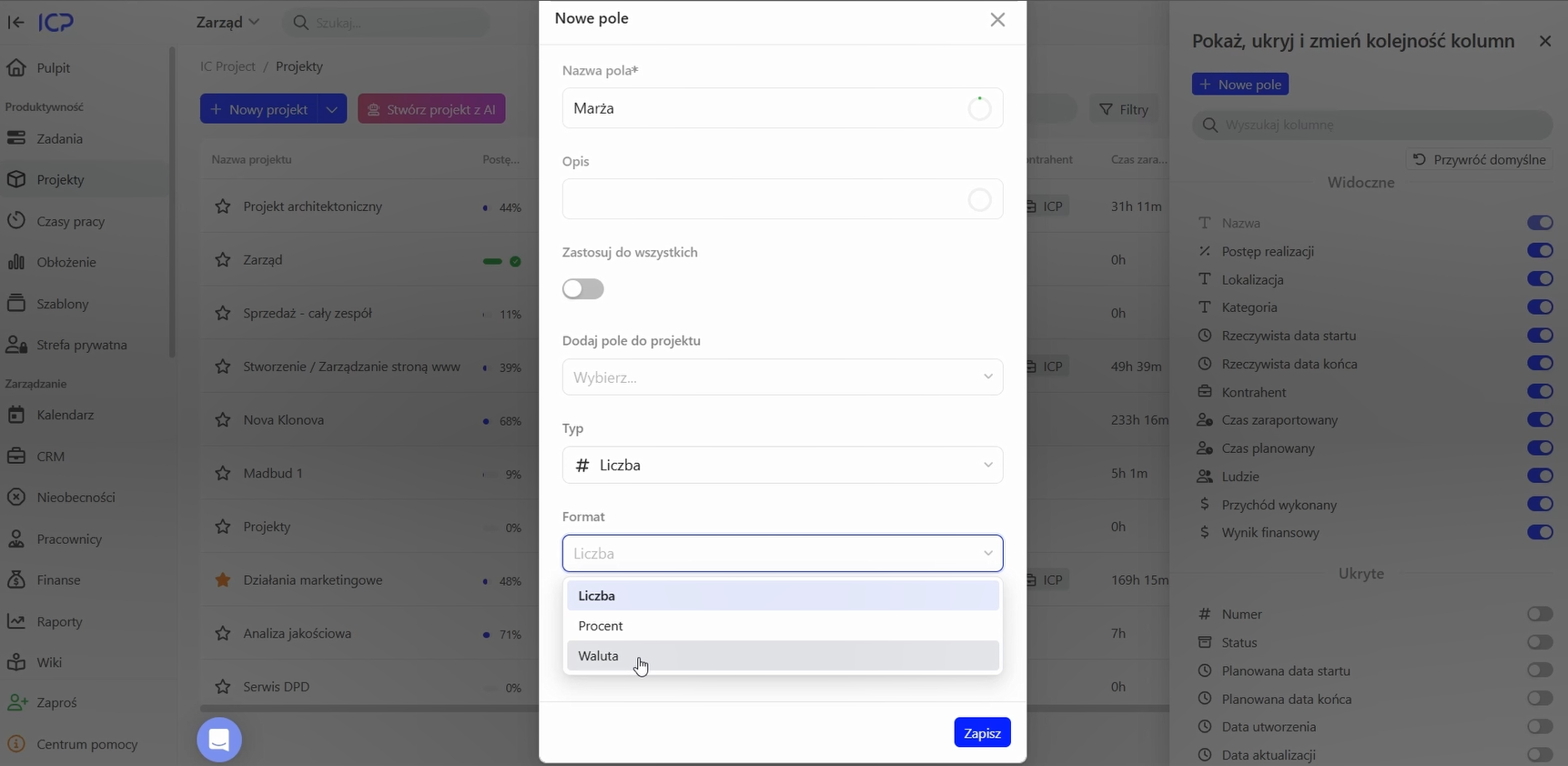
Apply it to all projects and save.
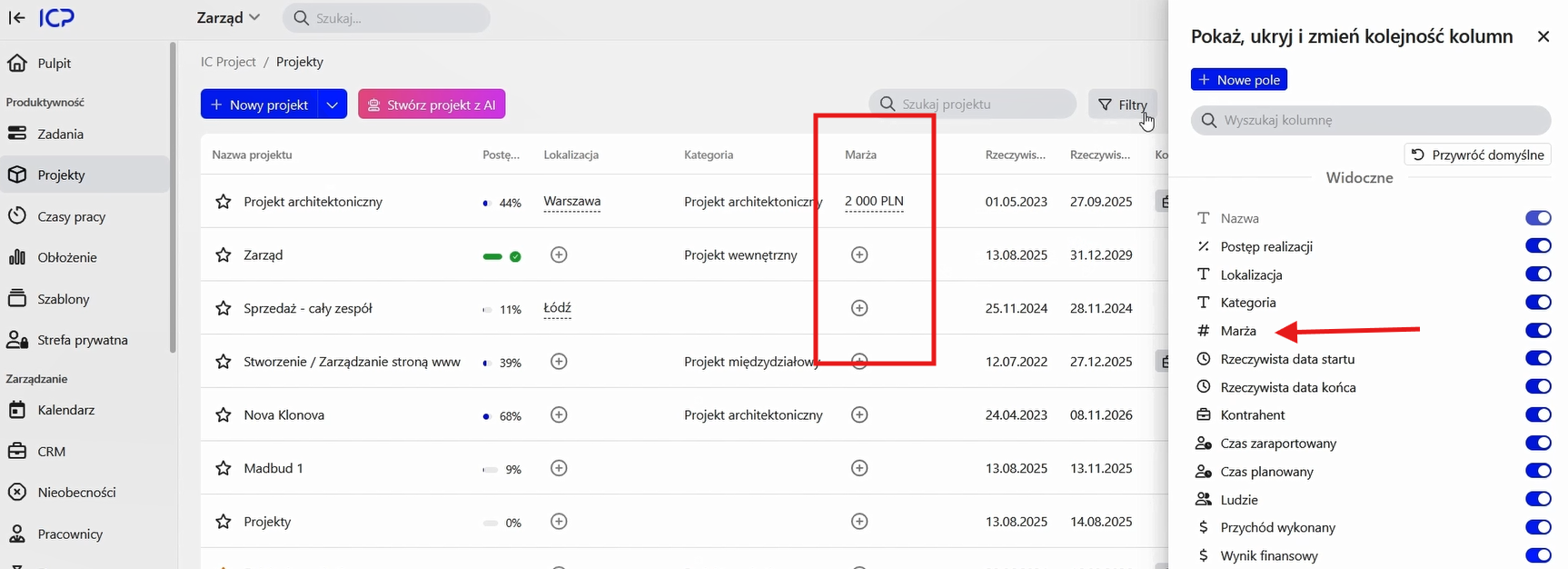
4. Managing and filtering data
Once created, your fields can be managed as needed.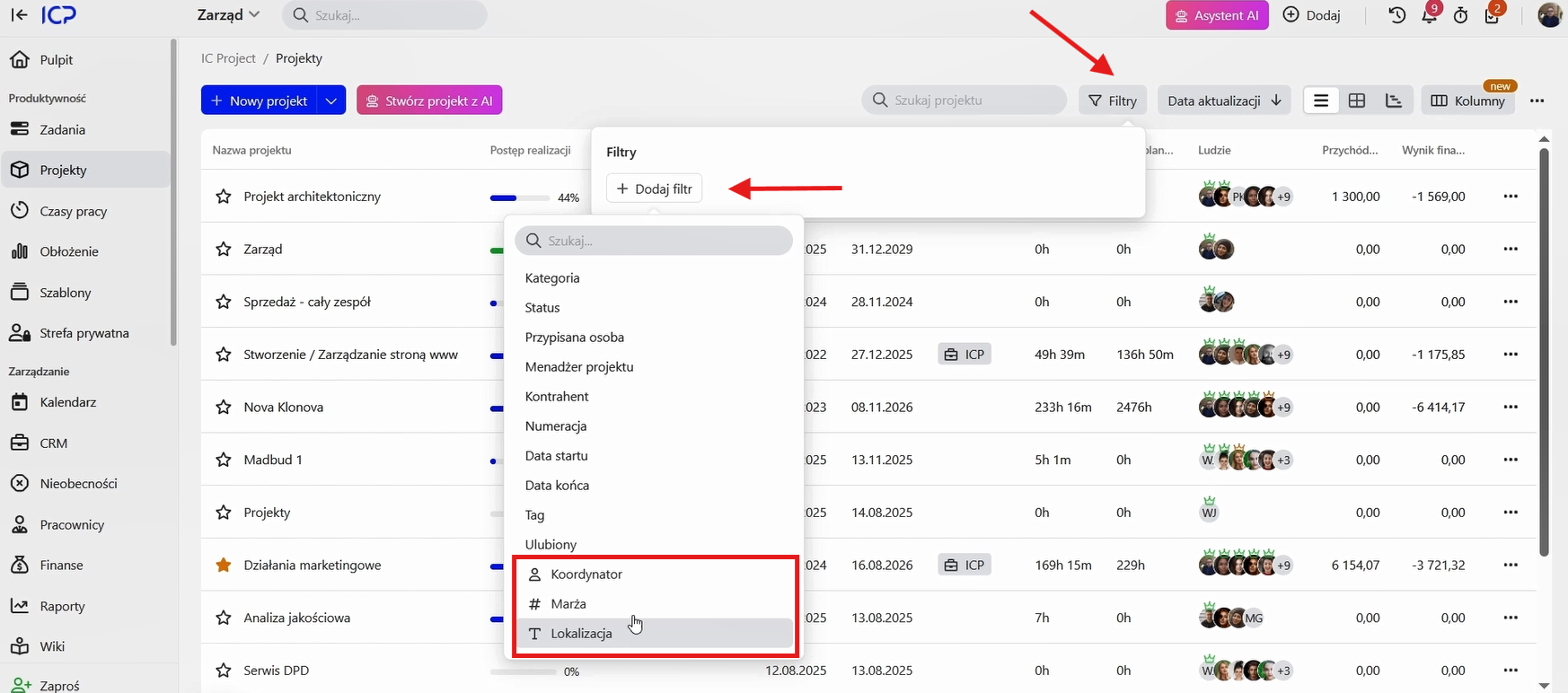
Custom field library
All fields you create are stored in the library. Open it by clicking Library in the columns view. You can edit existing fields, choose which projects they are active in and delete them.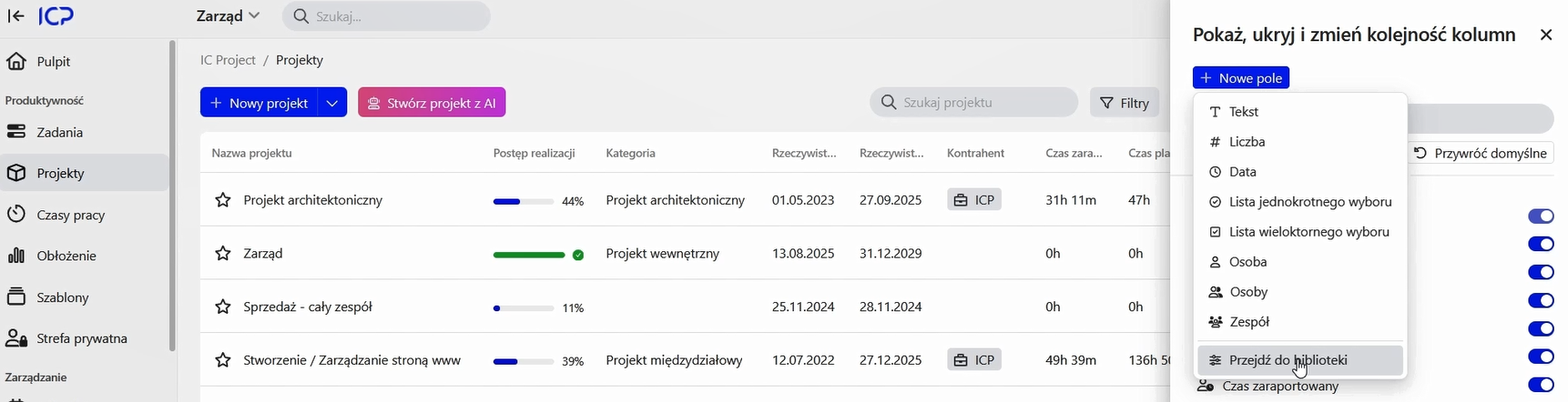
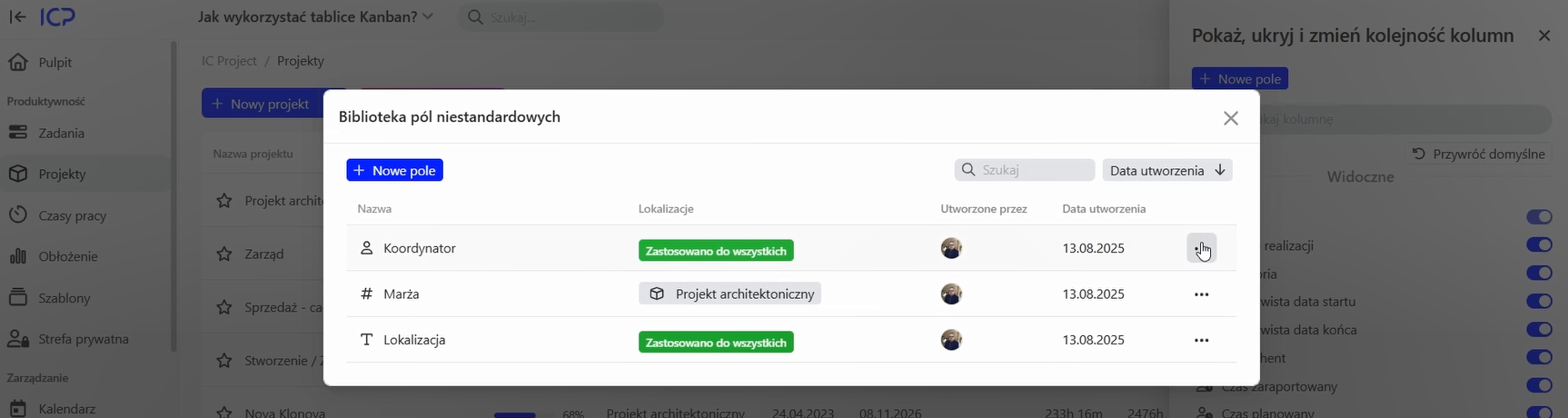
Filtering and exporting data
Custom fields are also useful for filtering!
Click Filters above the project or task list.
Find custom fields at the bottom of the list.
Select the field to filter by, such as Location, and enter a value.
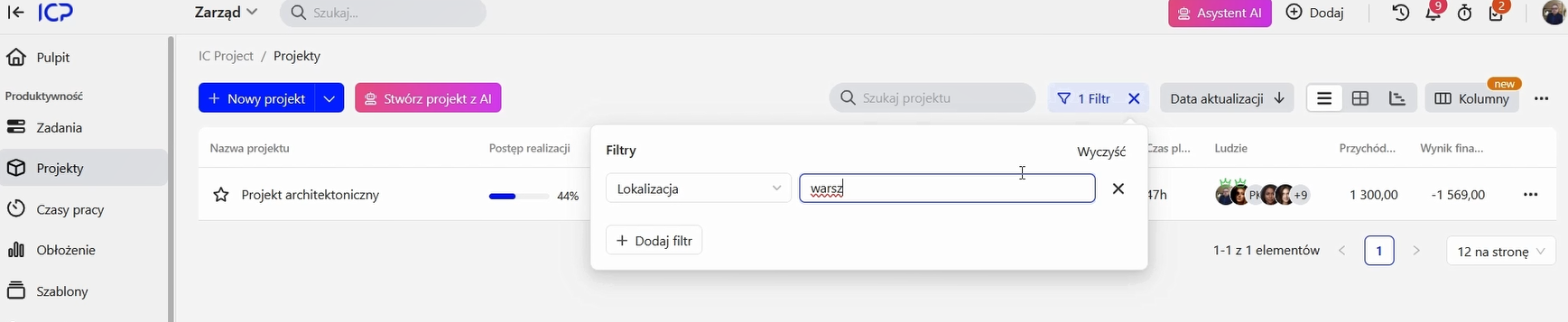
The system quickly finds all projects matching your criteria. 🕵️♂️ You can easily export the filtered data to XLS or CSV to create custom reports.
5. Custom fields in other modules
As mentioned, custom fields are also available in:
Tasks — create fields to track service hours, status or priority.
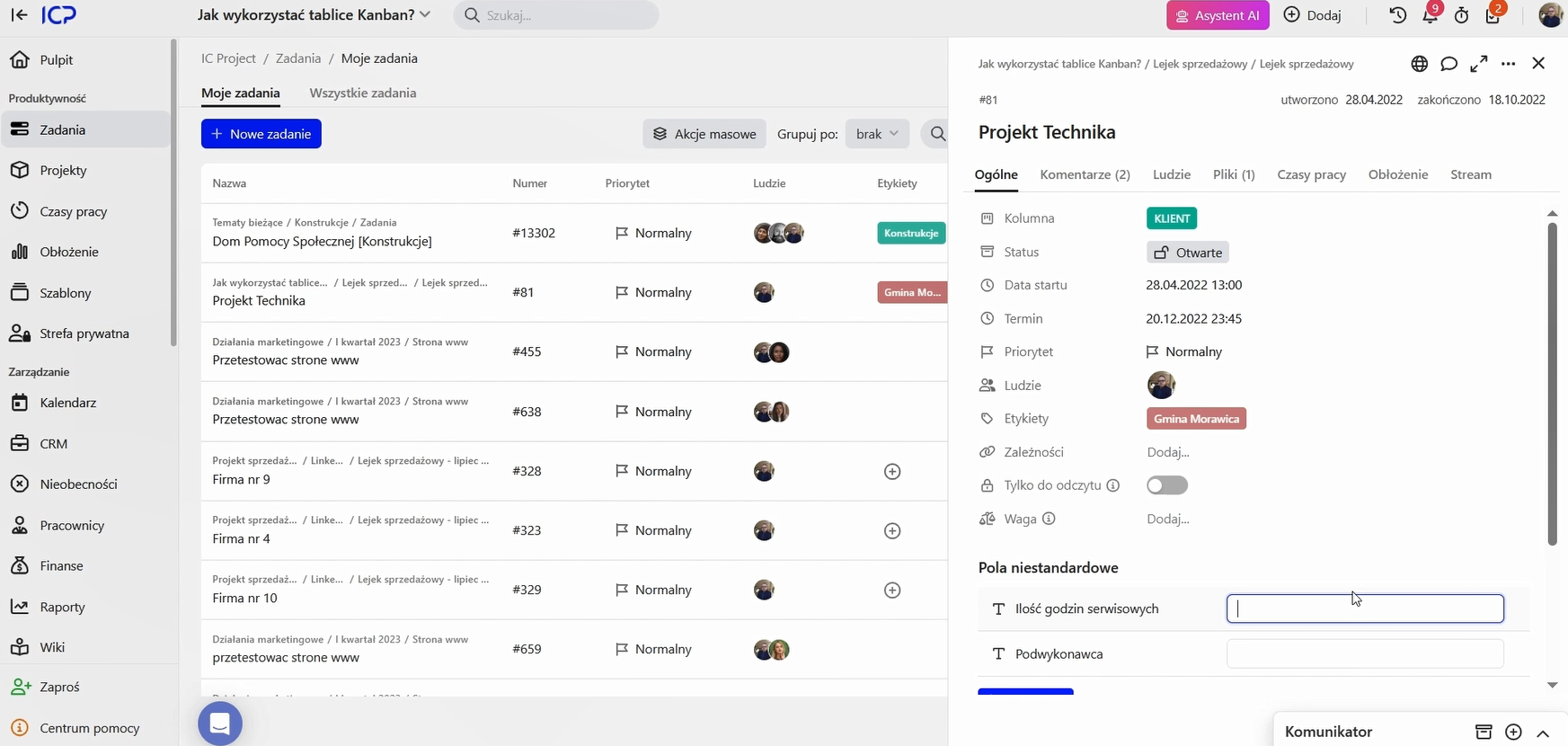
CRM — add client information such as industry, contractor type (supplier, client) or the next contact date.
Service tickets — categorise tickets by issue type or priority.
Custom fields in IC Project offer a flexible way to adapt the system to your business needs. Try them and see how they can make your work easier!