
User permissions
System administrators and users with permission to manage user roles can customise permissions in IC Project.
How do I customise employee permissions in IC Project?
User permissions in IC Project are easy to customise. A system administrator or a person authorised to manage user roles can do this.
Click your avatar in the top-right corner and select Settings > Users > Permissions.
Create roles, usually based on employees' job positions, using the button  . Name the role and edit it by turning on the appropriate switches in the selected sections.
Watch the video below for help customising permissions in IC Project.
Global permissions
There are two steps to assigning roles to employees.
First, create the appropriate roles and configure their permissions.
Second, assign those permissions to individual employees in the Employees section of the left-hand menu.
You can use different approaches to configure roles in detail.
Most customers create roles based on employees' positions in the company. You can also create a highly specific role for an individual employee.
If your company structure is simple, two roles — employee and project manager — may be enough. The choice is yours.
Before we configure an example role, remember that a newly added IC Project employee has minimal permissions.
This means all permission switches are turned off.
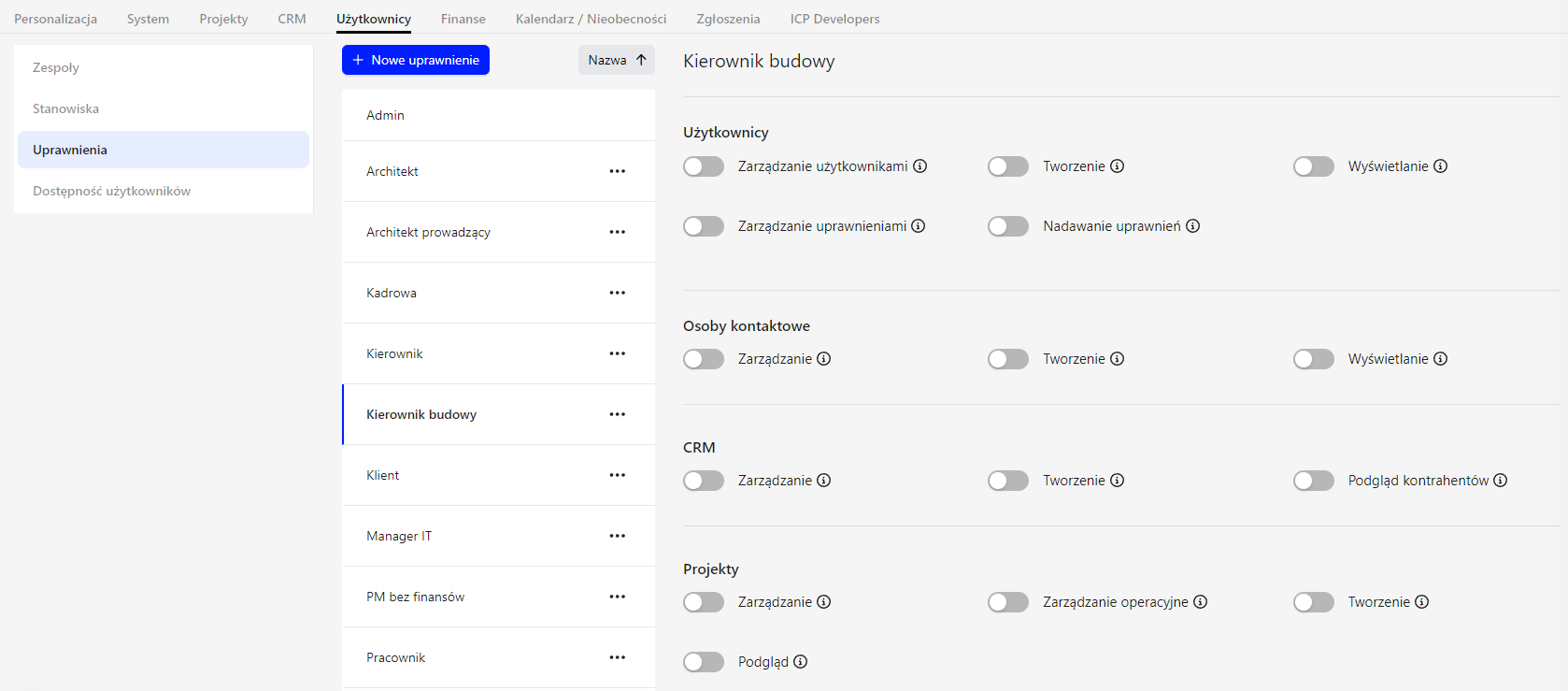
For this example, let's add a new role called “Construction manager” and start from the beginning.
Users:
- View: employees added through the Employees section in the left-hand menu generally have access to the Employees module.
This viewing permission concerns contact people from the CRM database. If you add a CRM contact to IC Project to work with them, and they need access to Employees in the left-hand menu, enable View for them. The Employees menu then becomes available.
- Create: enabling this for our construction manager lets them add new employees to IC Project with limited authority.
They can enter a first name, last name and hourly rate, and assign a team or position, but they cannot grant the new employee permissions.
You can allow this by extending their permissions.
IMPORTANT: a person with permission to Create users, but without Manage users, cannot edit or delete an employee after creating them.
- Manage users: lets a person add new employees, edit existing employees and delete them from the database. It does not itself allow them to assign permissions.
- IMPORTANT: even if an employee is allowed to assign permissions to new employees, they cannot assign the highest role: administrator.
- The system can have multiple administrators, but only an administrator can grant that role.
- Manage permissions: gives access to system settings and the permissions section. The user can add new permission roles and edit existing ones by turning switches on or off.
CRM:
If none of these switches is enabled, the CRM module does not appear in the employee's left-hand menu.
- View contractors: gives access to CRM and a limited view of all contractors, including information such as contact details, contact people and the calendar.
- Create: lets employees add contractors and immediately manage the ones they create. They cannot manage contractors created by others or added previously.
- Manage: gives access to all contractors in CRM, with full management rights, including adding and deleting contractors.
Projects:
- Minimal permissions (all switches off): take an employee named Jan Kowalski as an example.
- Suppose you manage 10 projects in IC Project, each with 10 task boards. If Jan is not involved in any project, he sees no projects when he opens Projects in the left-hand menu.
- Many customers work with minimal employee permissions.
- A project manager assigns the employee to a specific part of a project. For example, if Jan is assigned to task board 1 in project 1, he sees project 1 and only board 1 after logging in. He does not see the other nine boards in that project or the other nine projects in the system. This is the first option: minimal permissions.
- View: if Jan receives View permission for projects, he can see all projects and all their data after logging in, but cannot edit anything. This is read-only access.
- Create: if Jan receives permission to create projects, he can create a project and immediately manage it. He cannot manage projects created by others or created previously.
- This option works well when different company departments use IC Project.
- For example: Marketing adds and sees its own projects. Administration adds and sees its own projects. Sales adds and sees its own projects. We recommend this permission if you want to separate projects between departments in this way.
- Operational management: lets Jan fully manage all IC Project projects, except for their Finance modules.
- Manage: this is the highest level of project permissions. The user can add projects, edit existing projects and delete them from the database.
Wiki (company knowledge base):
- View: displays Wiki in the left-hand menu. The employee can read its content and download attachments.
- Manage: lets the employee add content to Wiki.
Finance:
If none of these switches is enabled, Finance does not appear in the employee's left-hand menu.
- View costs: lets the employee see all costs entered in IC Project. They cannot add or edit them.
- Add costs: lets the employee add costs and see only the costs they have added.
- View invoices: gives read-only access to invoices.
- Manage invoices: gives full access to the invoicing module. The employee can issue invoices, view all invoices and edit invoices already issued.
- Manage: gives full management access to all three tabs in Finance: invoices, costs and revenues.
Calendar:
Every employee has access to the calendar, regardless of permissions.
- Manage: additionally allows the employee to create new event categories in IC Project.
Absences:
With management disabled, an employee has limited access to Absences and can view only their own leave requests.
- Manage: lets the employee adjust employees' leave allowances and approve or reject leave requests.
Reports:
If none of these switches is enabled, reports are not available.
Access:
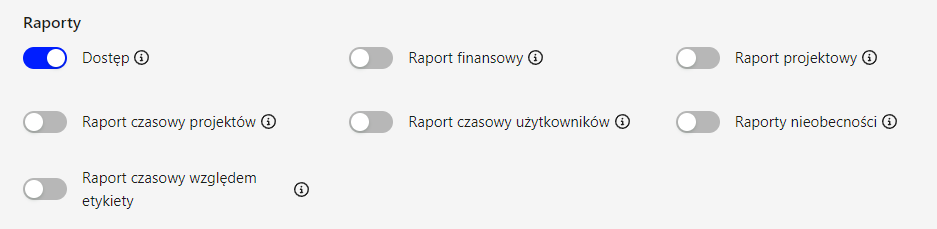
If only Access is enabled and the employee does not manage any projects, they can generate two reports: their own user time report and their own absence report. If they manage at least one project, Access also lets them generate reports for that project only. Examples include a financial report, a user time report for people involved in that project, a project time report, a time report by label and a project report.
Enabling access to specific reports:
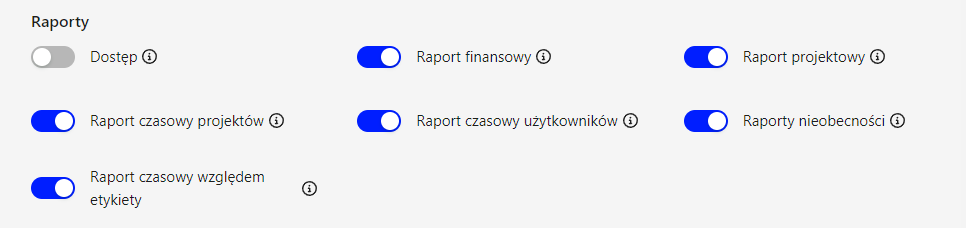
If an employee has minimal permissions and you enable User time report, they gain full access to that report and can generate time reports for all users.
Enabling Absence reports lets them generate absence reports for all users. Enabling Financial report gives them full access to financial reports for all projects.
Service tickets:
If Manage is disabled for tickets, the module does not appear in the employee's left-hand menu.
- Manage: automatically makes the employee a service ticket operator. They can see and handle all incoming customer tickets and create employee tasks from them.
Workload:
Enabling workload management makes the module available in the left-hand menu.
- Manage: lets the employee monitor overloaded team members and make changes in the Workload module. We explain employee workload management in a separate video.
Hover over an information icon to see a short explanation of the relevant permission.
Project permissions
Alongside global permissions, IC Project also has project permissions. If Jan Kowalski has minimal global permissions, for example, you can extend them for one or more selected projects.
The project manager can assign Jan an appropriate role in the project's People tab.
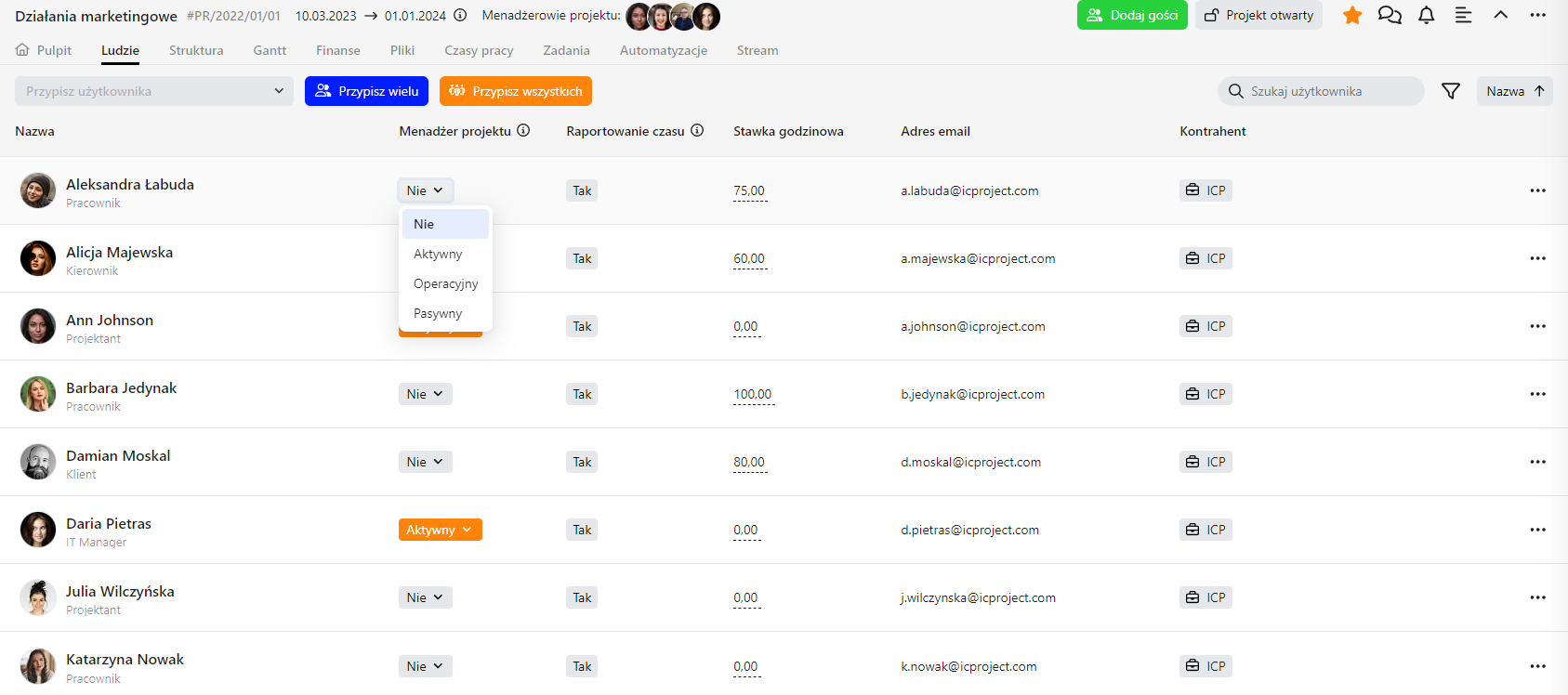
There are four options:
“No”:
The person is a regular employee, usually working on tasks in a specific part of the project. They do not have access to its Gantt chart or finances.
Active (project manager):
The employee can fully manage the project, extend its structure with stages and boards, and access both its Gantt chart and Finance tab.
Operational (project manager):
The person can manage the project, extend its structure and adjust its Gantt schedule, but the Finance tab is hidden.
Passive (project manager):
The person can view everything in the project, including finances, but cannot edit anything. This is a project monitoring role.
As you can see, IC Project's permissions module is extensive.
This gives you flexibility to configure permissions to suit your employees.