
Automations in IC Project
Learn how to automate recurring tasks and notifications in IC Project to save time and streamline teamwork.
Automations in IC Project: how to save time and streamline teamwork
We are pleased to introduce the updated Automations module in IC Project. This powerful tool lets you automate recurring activities and significantly speed up your team's work.
Forget about manually creating the same tasks or sending notifications. The system can now do it for you! This step-by-step guide shows you how to set up your first automations.
Where can I find the Automations module?
You can find automations in two places:
In the main Automations tab in a project's menu.
Directly on a selected task board, under the Automation button.
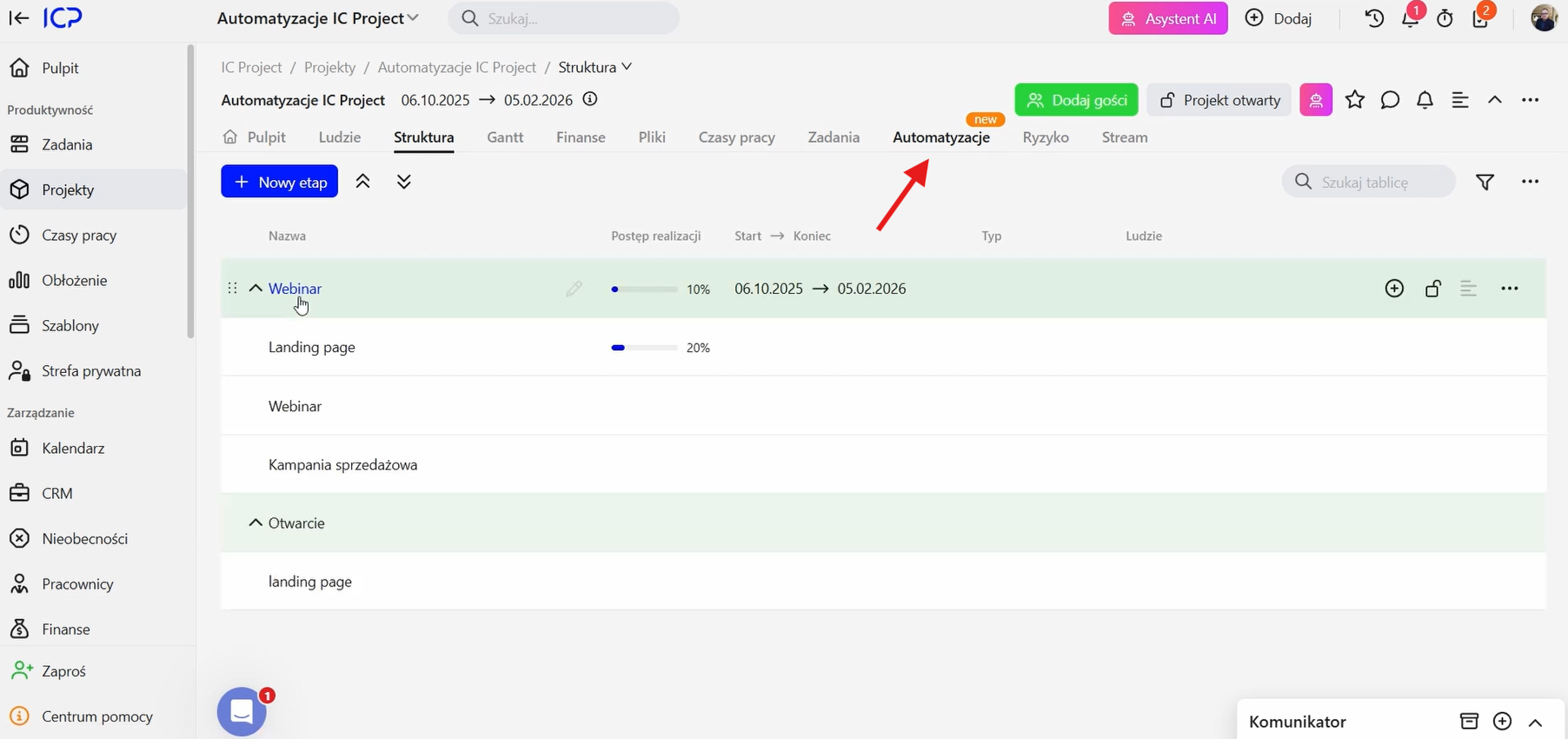
Creating your first automation, step by step
The principle is simple: “If X happens, do Y.” Let's look at two common examples.
Example 1: automatically creating a task when another one is completed
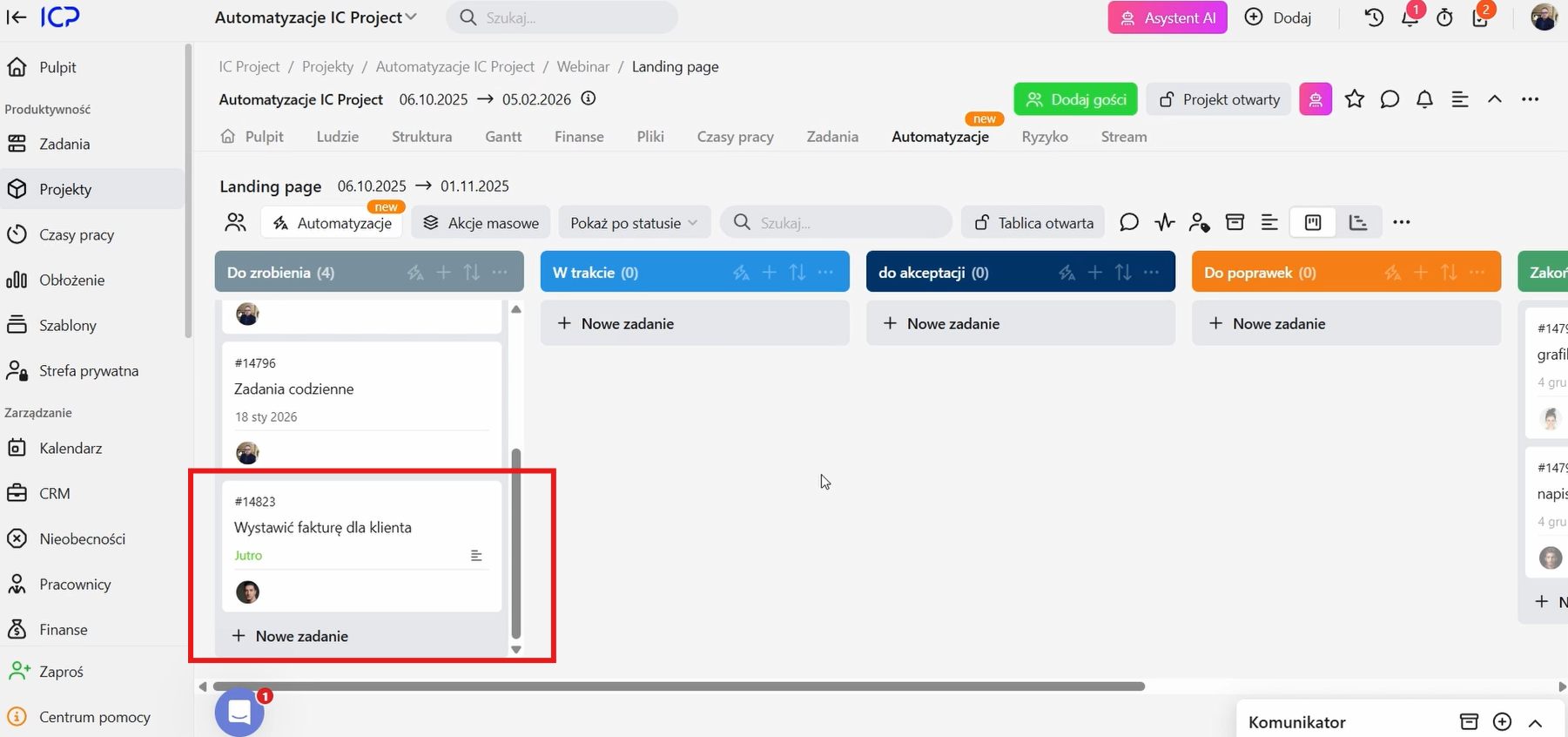
Imagine that whenever you finish a task for a client, you need to remember to issue an invoice. Let's automate it!
Open Automations and click New automation.
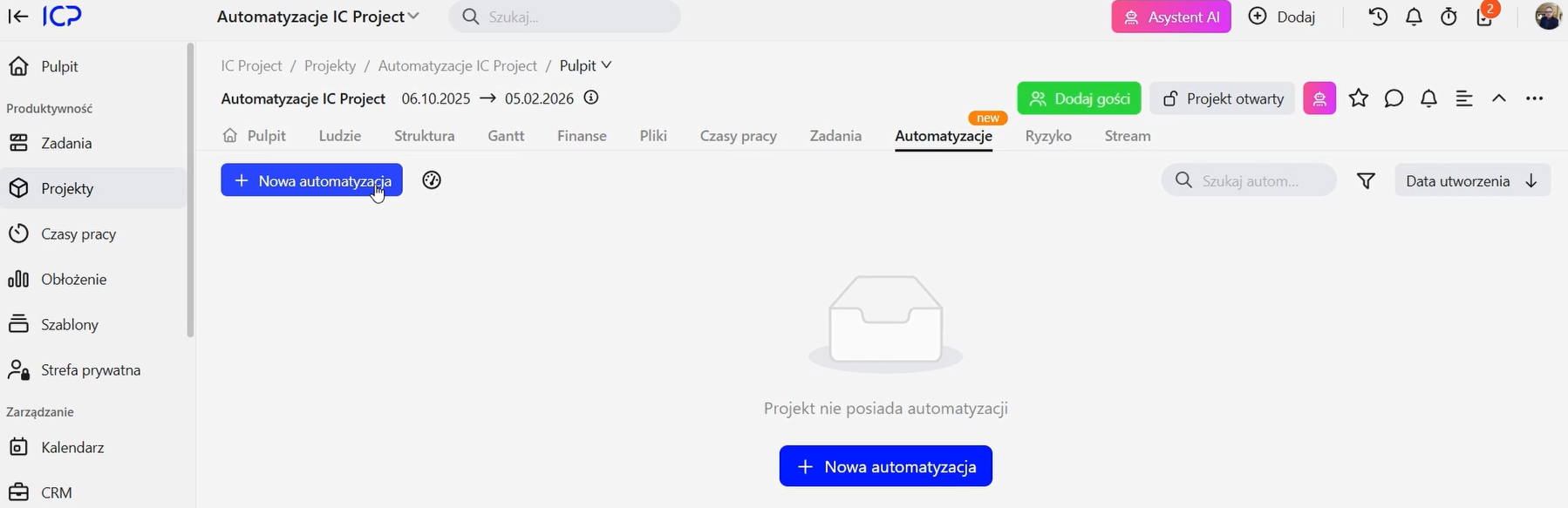
We will focus on task automation. Choose a trigger: the action that starts the automation.
In “When on a task…”, select “Change column to”.
Choose “Completed” as the column.
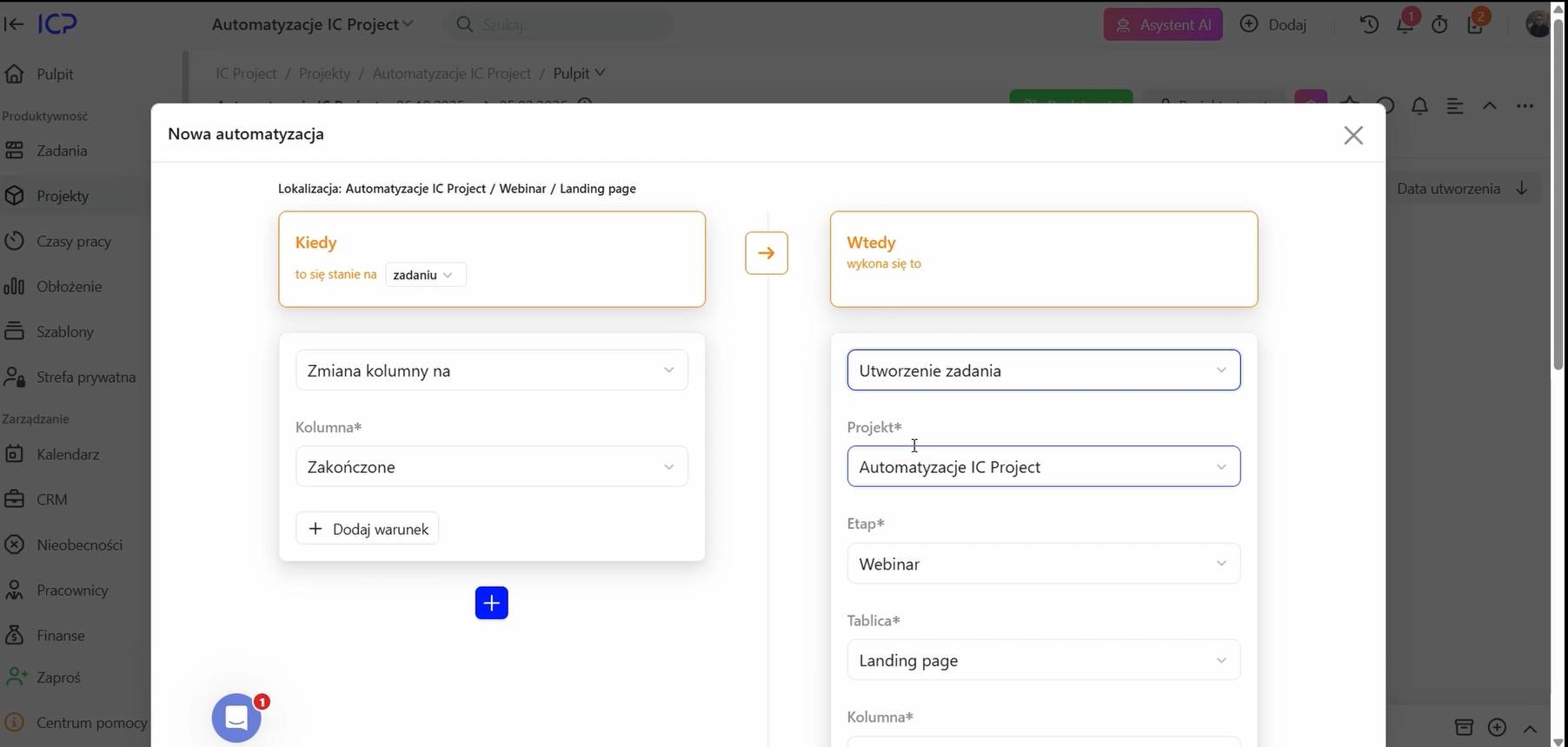
What does this mean? The automation will run whenever any task on the selected board is moved to the “Completed” column.
Now define the action to perform.
Click Add action and select Create task.
Configure the new task:
Task name: for example, “Issue an invoice for the client”.
Project, stage, board: keep the current ones or choose an entirely different project.
Assignee: select the person responsible for invoicing, such as someone in accounting.
Label: add a label such as “Invoice” to help organise the task.
Task template: you can also load an existing template with predefined content or a checklist.
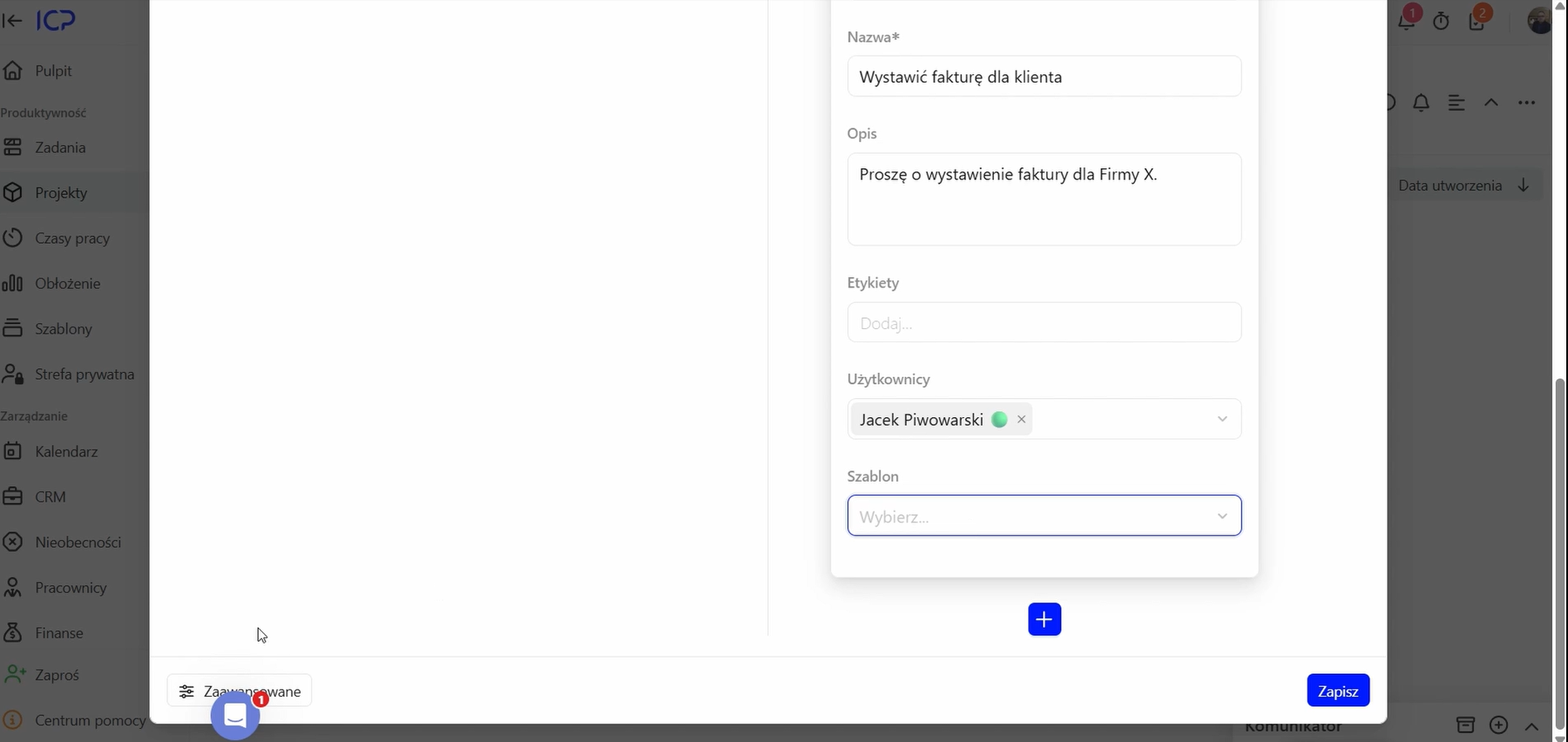
Advanced settings (optional):
Click Advanced to give the automation a unique name, set its execution interval or limit how many times it runs. You can leave these fields empty to begin with.
Save, and you're done! ✅ Your automation is active. Whenever you move a task to “Completed”…
…the system automatically creates “Issue an invoice for the client” and assigns it to the appropriate person, who receives a notification. Simple, isn't it?

Example 2: automatically notifying another team
Completing one task often signals that someone else can start working. Instead of sending emails or chat messages, let's create an automatic notification!
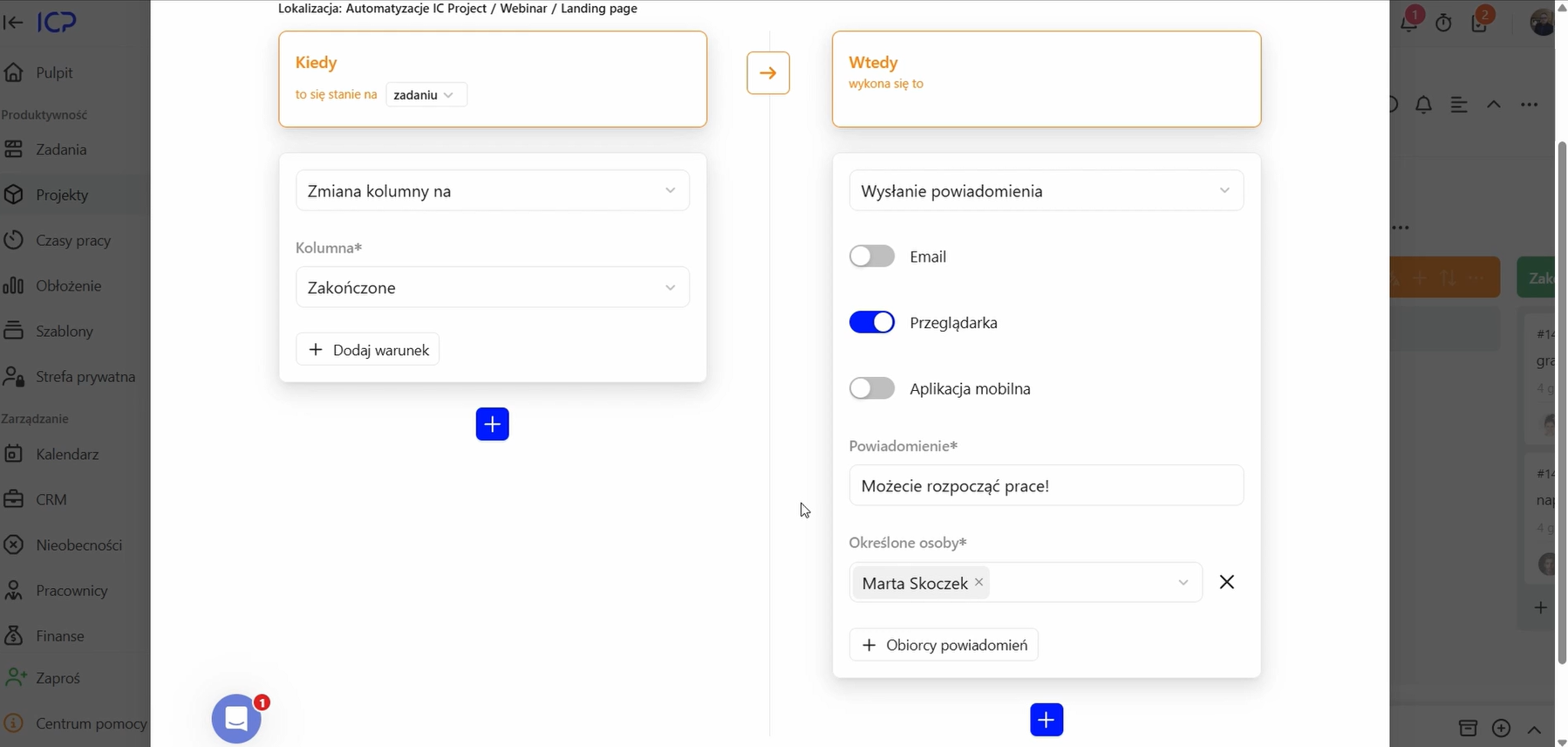
Create another automation and set the trigger to “When a task is completed”.
Select Send notification as the action.
Configure the notification:
Notification type: choose how it is delivered, for example in the browser only or by email.
Message: enter a message such as “You can start work on the next stage!”.
Recipients: choose individual people or entire teams. They can be from a completely different board or project!
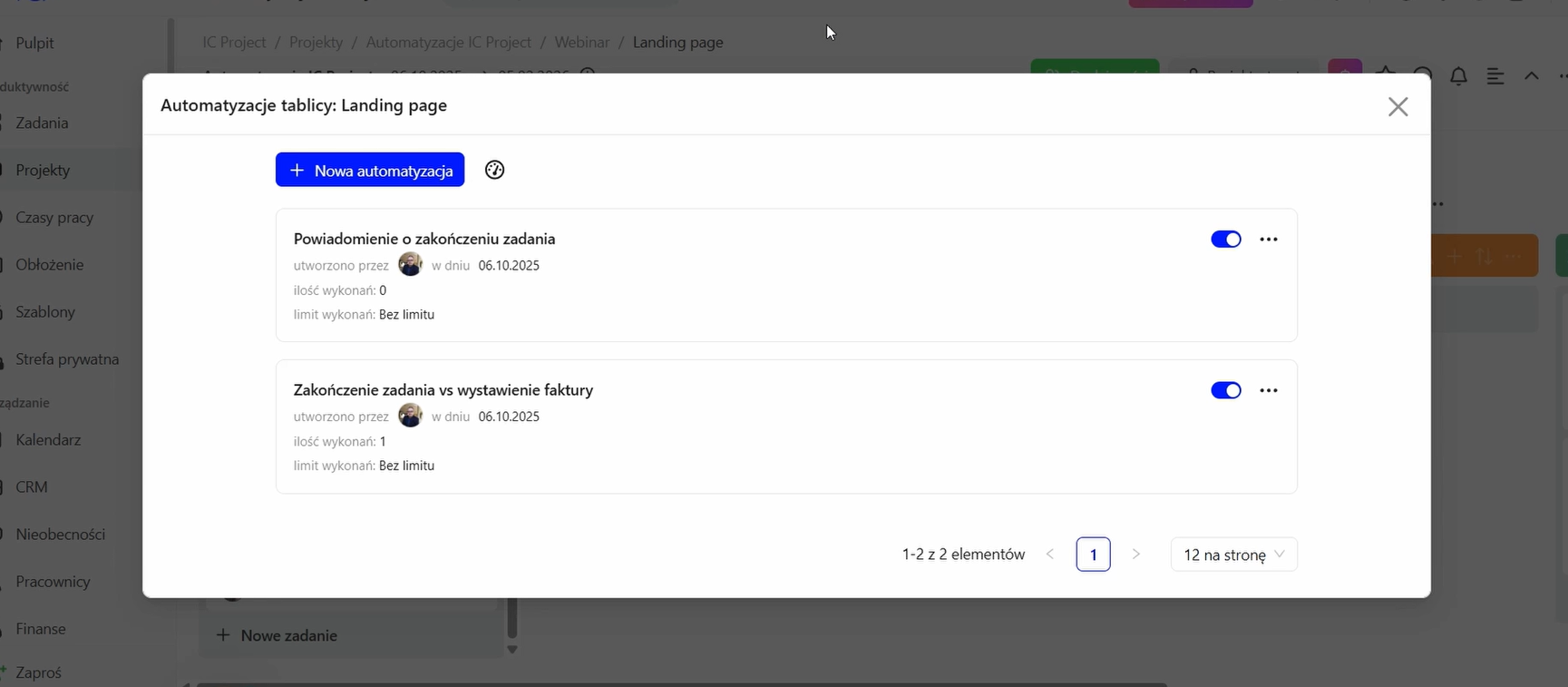
Save the automation. 📧
As soon as you complete the task, the selected person — Marta in our example — receives your notification in the browser and can take over the work smoothly.

Summary
The Automations module is flexible and can be adapted to your company's processes. Try it out! Think about which recurring activities take up most of your time and try automating them.
Have an idea for an automation, or need help setting it up? Let us know — we are here to help. 🧑💻
