
Outlook Calendar integration
Synchronise calendar events between Outlook and IC Project in either direction.
1. Synchronising events from Outlook to IC Project
Let's start by importing your Outlook calendar into IC Project. This is useful if you organise most meetings and events in Outlook but also want to see them in IC Project.
Publish your Outlook calendar:
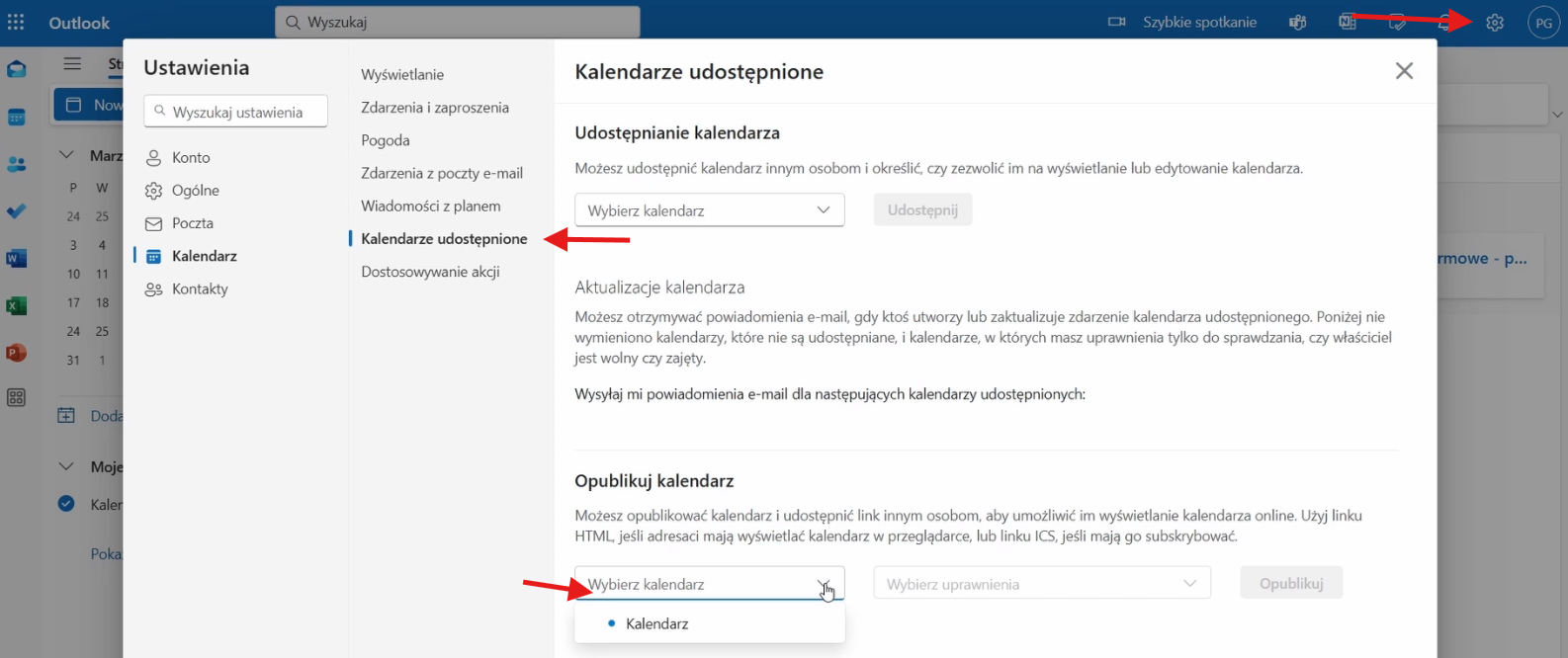
- Open your Outlook calendar.
- Click the gear icon (Settings) in the top-right corner ⚙️.
- Select Shared calendars.
- At the bottom of the page, select the calendar to publish. If you have only one, choose it.
- Select the sharing level. We recommend “Can view all details” for full event information. You can choose “Busy/Free” if you prefer less detail.
- Click Publish.
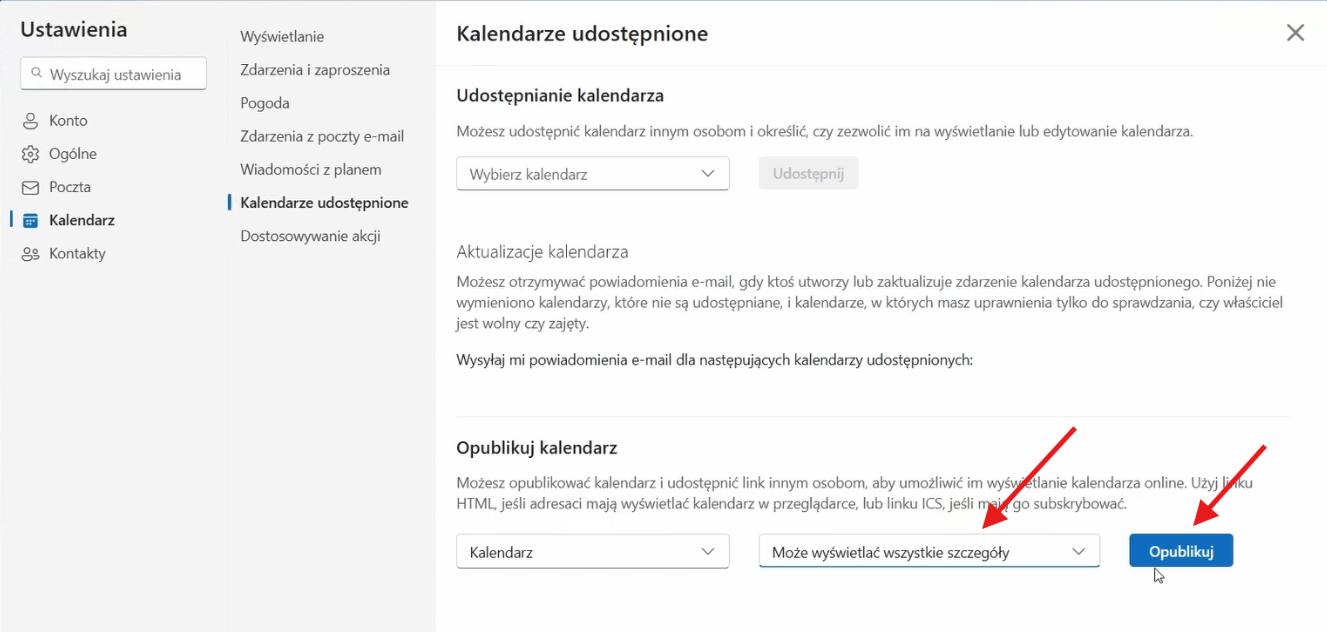
- Two links are generated. Copy the first one, usually the calendar subscription link.
Add an external calendar in IC Project:
- Open IC Project and go to Integrations.
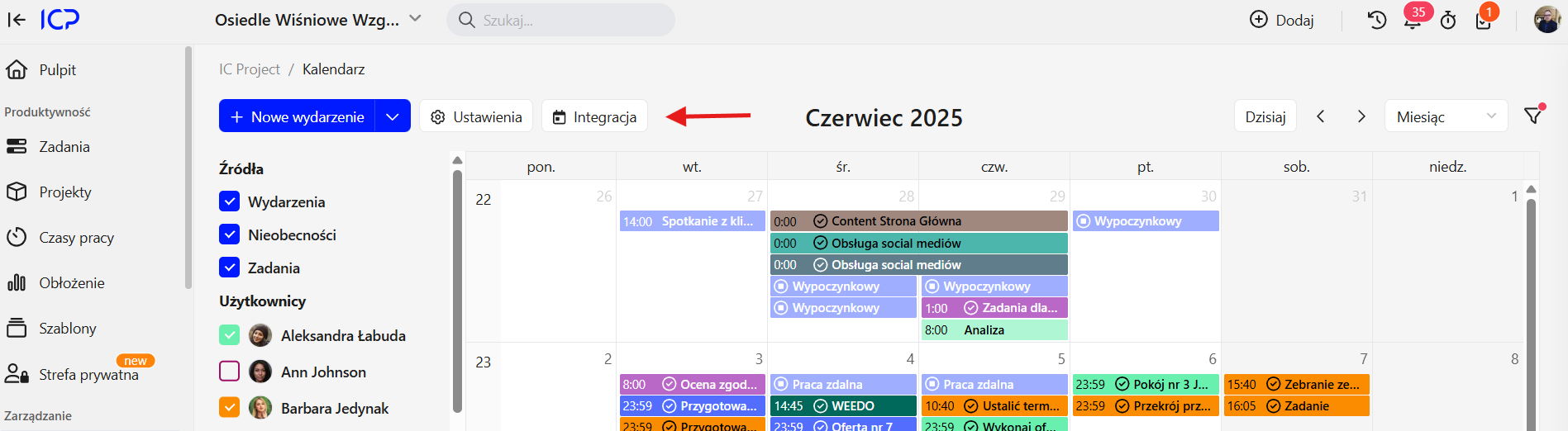
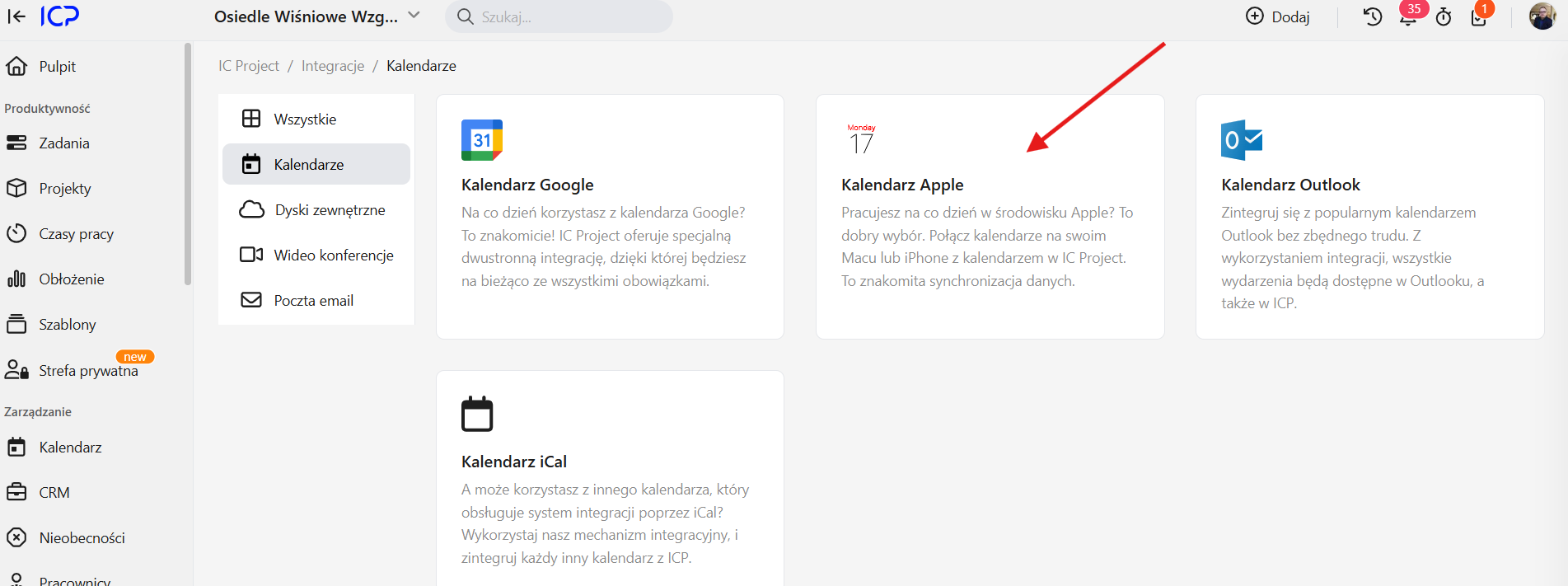
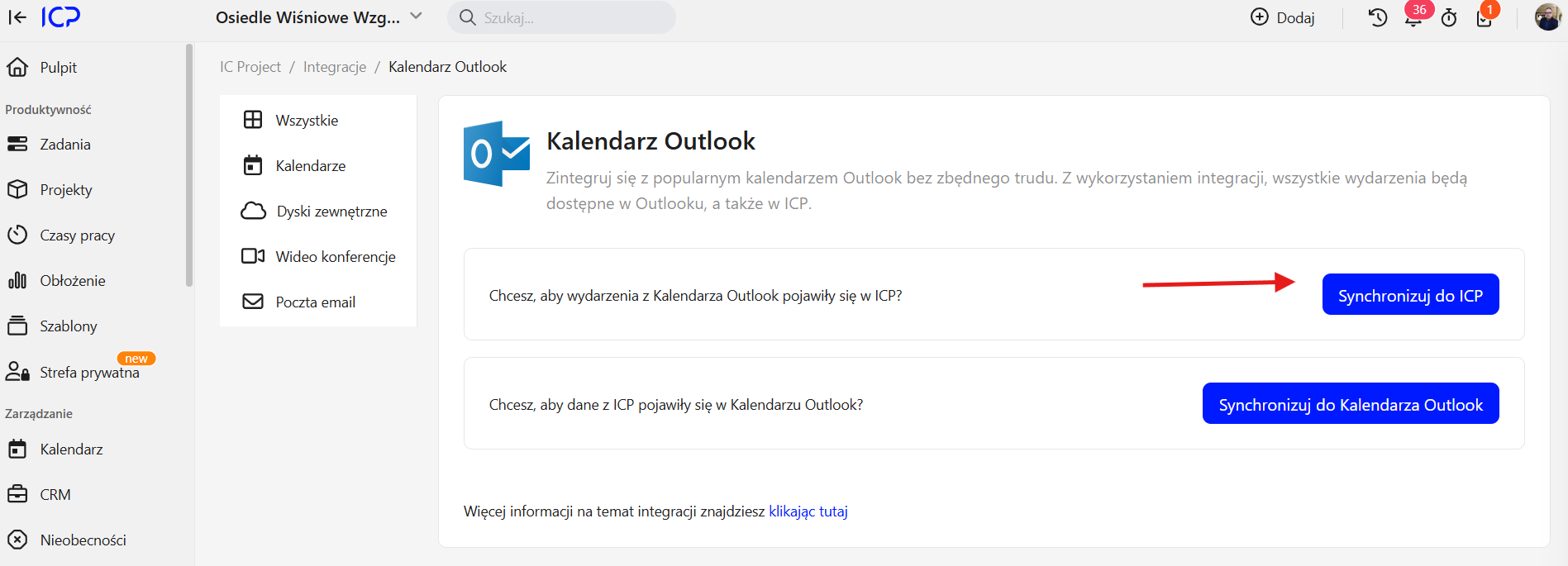
- Select Outlook Calendar.
- Select Synchronise to ICP.
- Click Add external calendar.
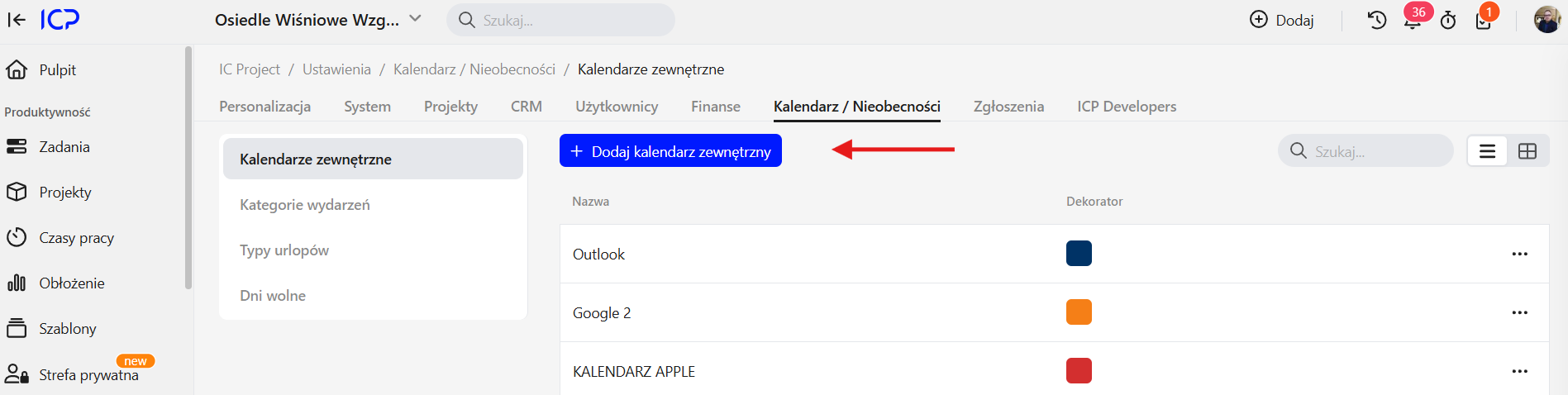
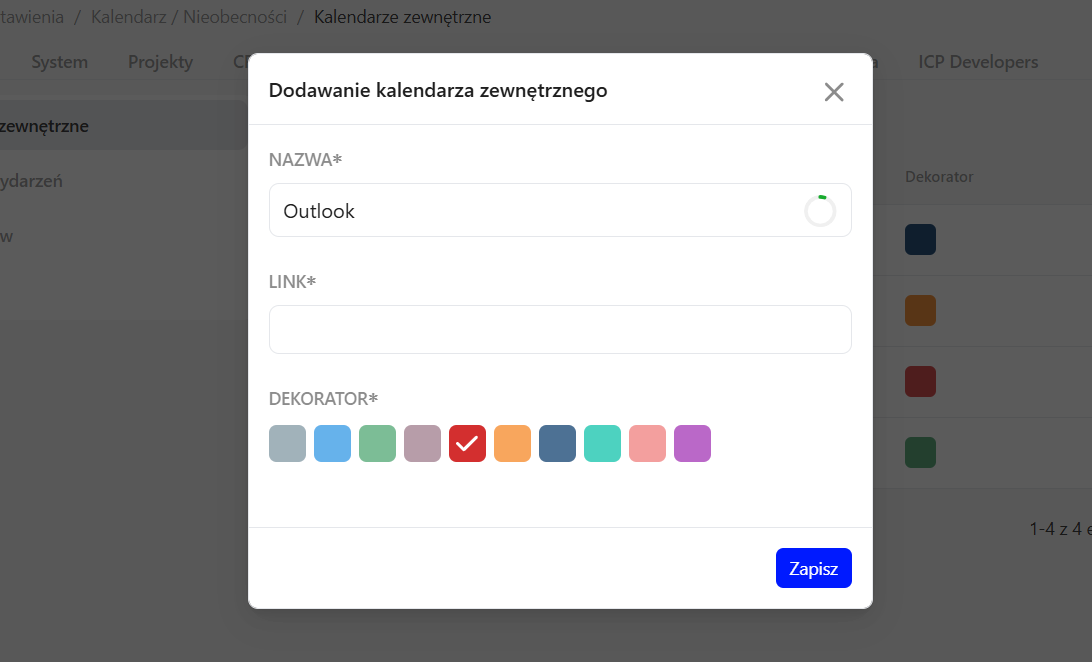
- Name the imported calendar, for example “My Outlook”.
- Paste the link you copied from Outlook.
- Choose a colour 🎨, such as green, to identify it easily in IC Project.
- Click Save.
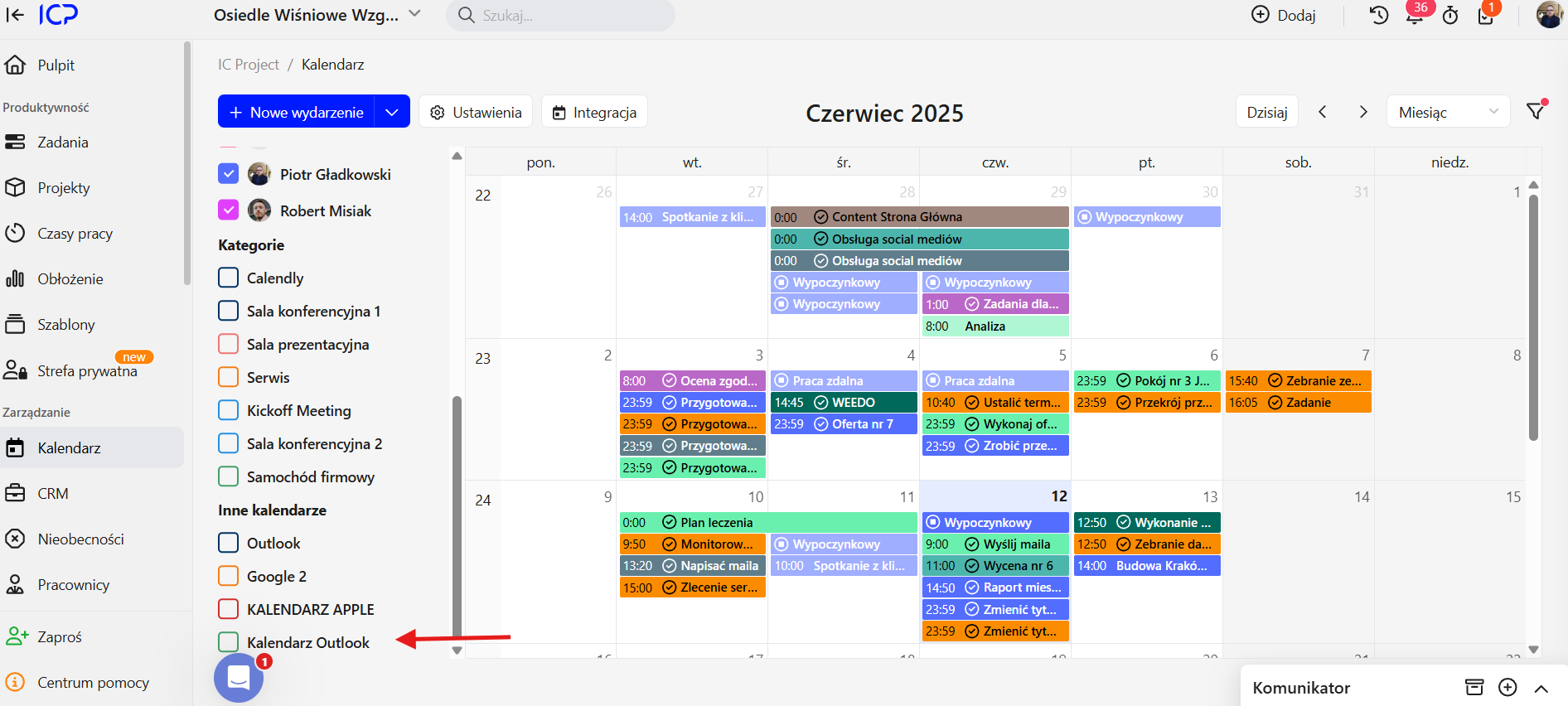
Open your calendar in IC Project. The Outlook calendar should appear under “Other calendars”. Select it to display all Outlook events directly in IC Project! 🎉
2. Synchronising events from IC Project to Outlook
Now let's send IC Project events to Outlook, so your tasks, leave and events are visible in your Microsoft calendar. The process is similar for leave and tasks.
Start a new synchronisation in IC Project:
- Open Integrations.
- Select Outlook Calendar.
- Select Synchronise from IC Project to Outlook.
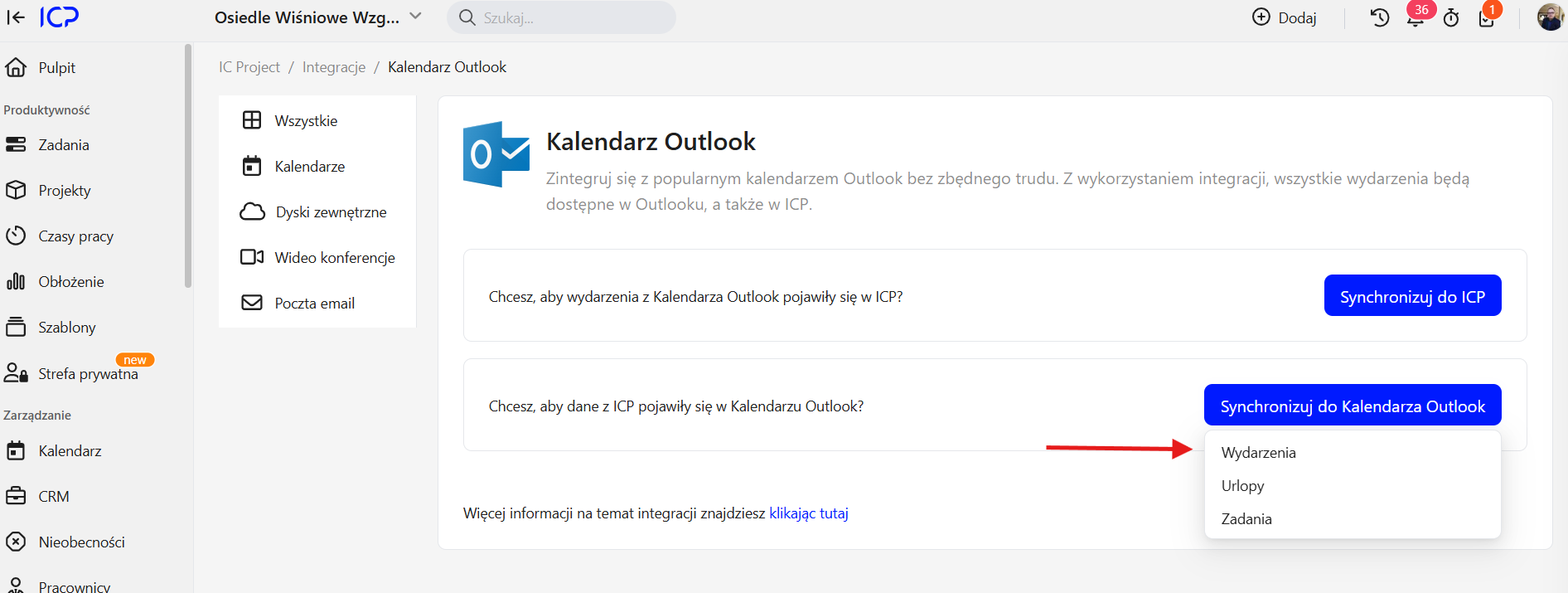
- If this is your first synchronisation, click New event synchronisation.
- Name the synchronisation, for example “ICP events”.
- You can filter events by category, user or contractor. Skip these options to synchronise all events.
- Click Add synchronisation.
- A new synchronisation card appears, which you can expand.
Copy the synchronisation link from IC Project:
- Expand the card to find instructions and a dedicated link.
- Use the button to copy the link.
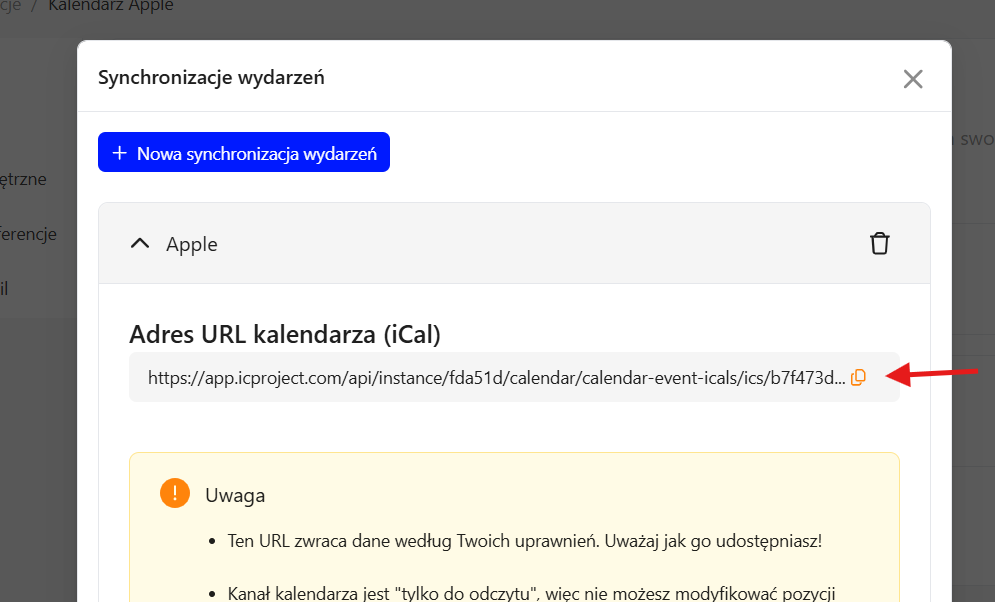
Subscribe to the calendar in Outlook:
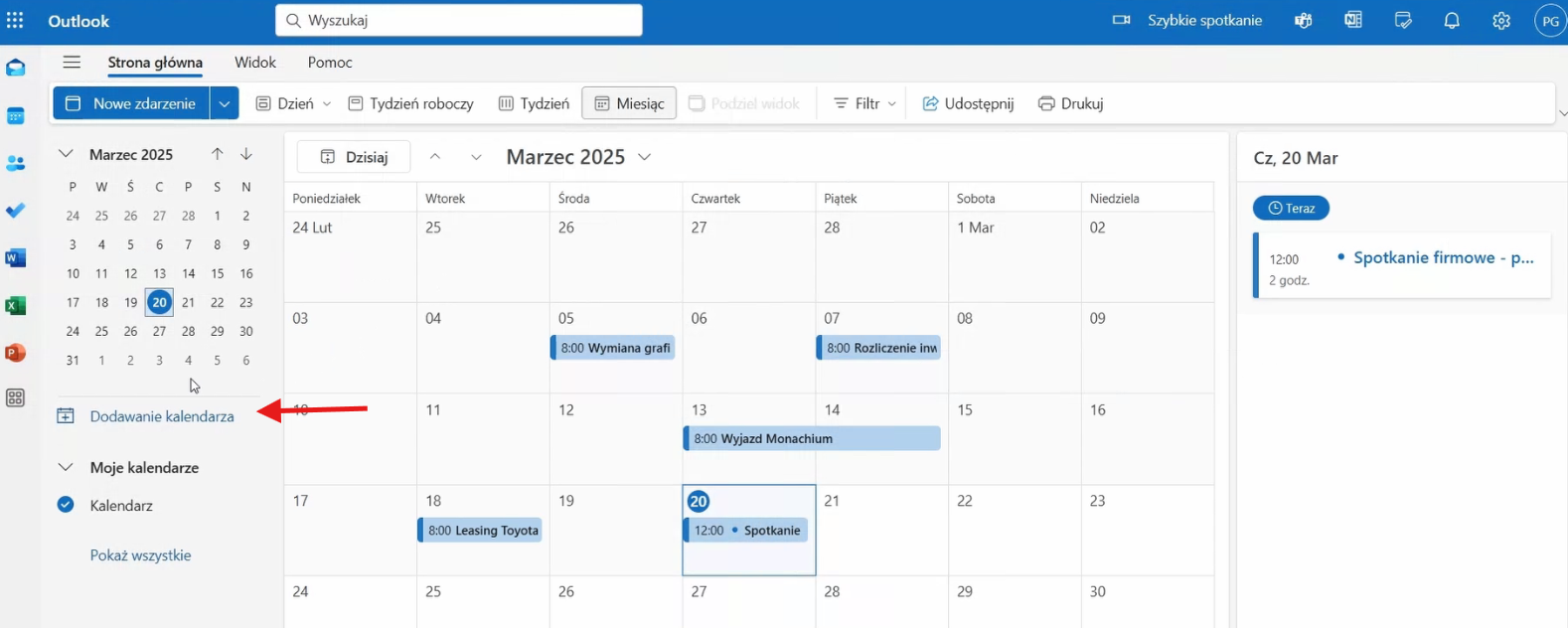
- Open your Outlook calendar.
- Choose Add calendar in the left-hand menu.
- Select Subscribe from web.
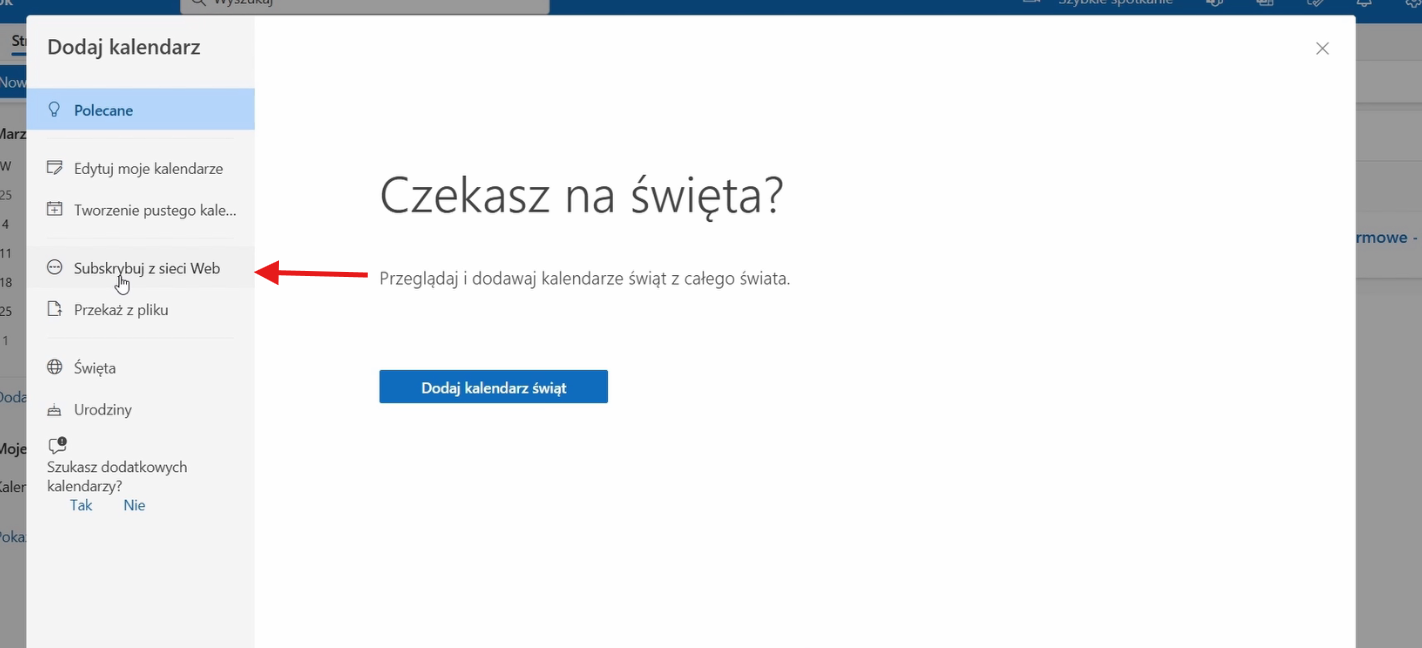
- Paste the link copied from IC Project.
- Name the calendar, for example “ICP Calendar”.
- Choose a colour 🎨.
- Choose where to save it, such as “My calendars”.
- Click Import.
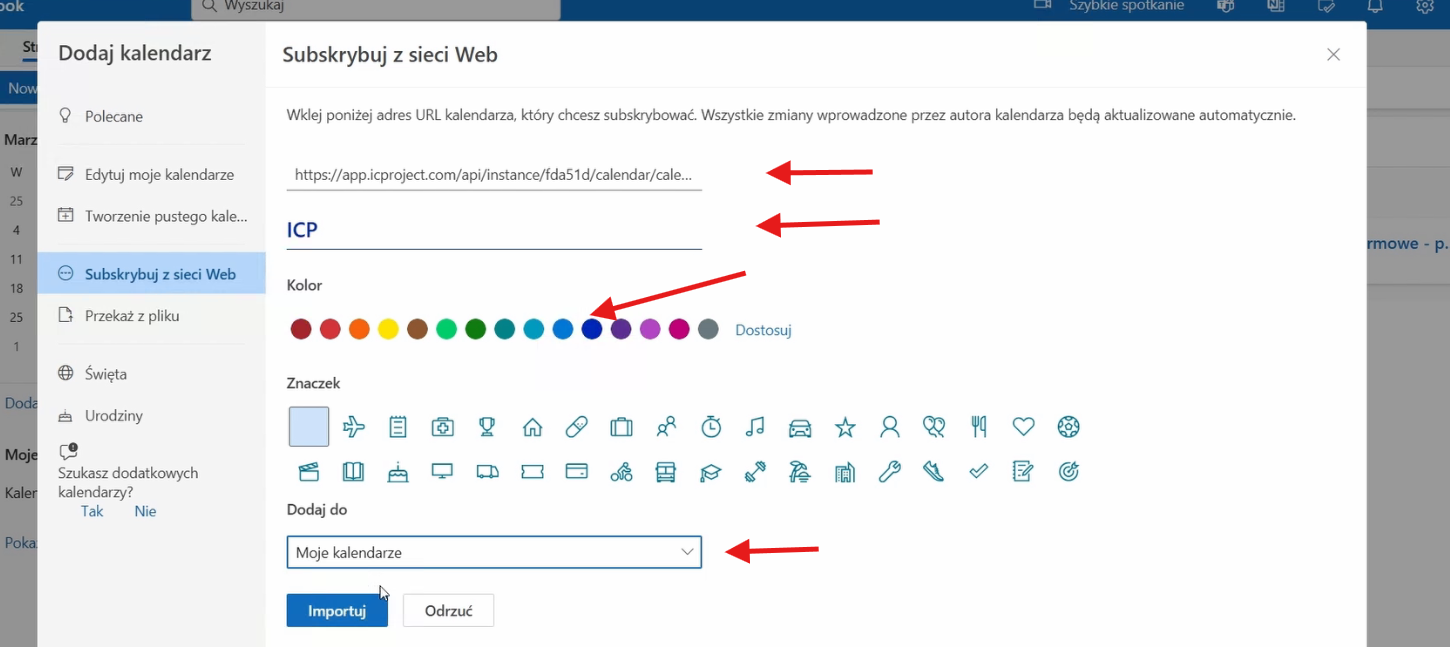
After a short wait, IC Project events appear in Outlook, often highlighted in the colour you selected! 👍
These steps let you synchronise events in both directions between Outlook and IC Project and keep your schedule organised.