
Team & time off
How to change or remove the employee’s photo?
Change or removal of the user’s profile photo is similar to photo addition.
Go to the Employees tab and click the name of the chosen user, select  or
 at the chosen employee and click edit. You will see the given user’s profile.
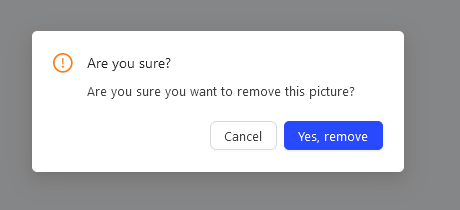
Now, to remove a photo of an employee, hover your cursor over the avatar of that person and click  and confirm your decision with
 .
Now, if you wish to add a new photo, hover your cursor over the avatar of that person and click 
Click the area of the pop-up window or drag the photo to that area.
Now, holding the left mouse button on the selected photo, crop it. You can also use the button “+” to zoom in or “-” to zoom out. Then, click  to accept and the
 . button. And done! The photo has been added.
Categories:Team & time off