
How do I create a project with the AI Assistant?
Meet the AI Assistant, which combines artificial intelligence with IC Project tools to help you build a project structure.
We are pleased to introduce our new AI Assistant, which transforms project management by combining artificial intelligence with IC Project's intuitive features.
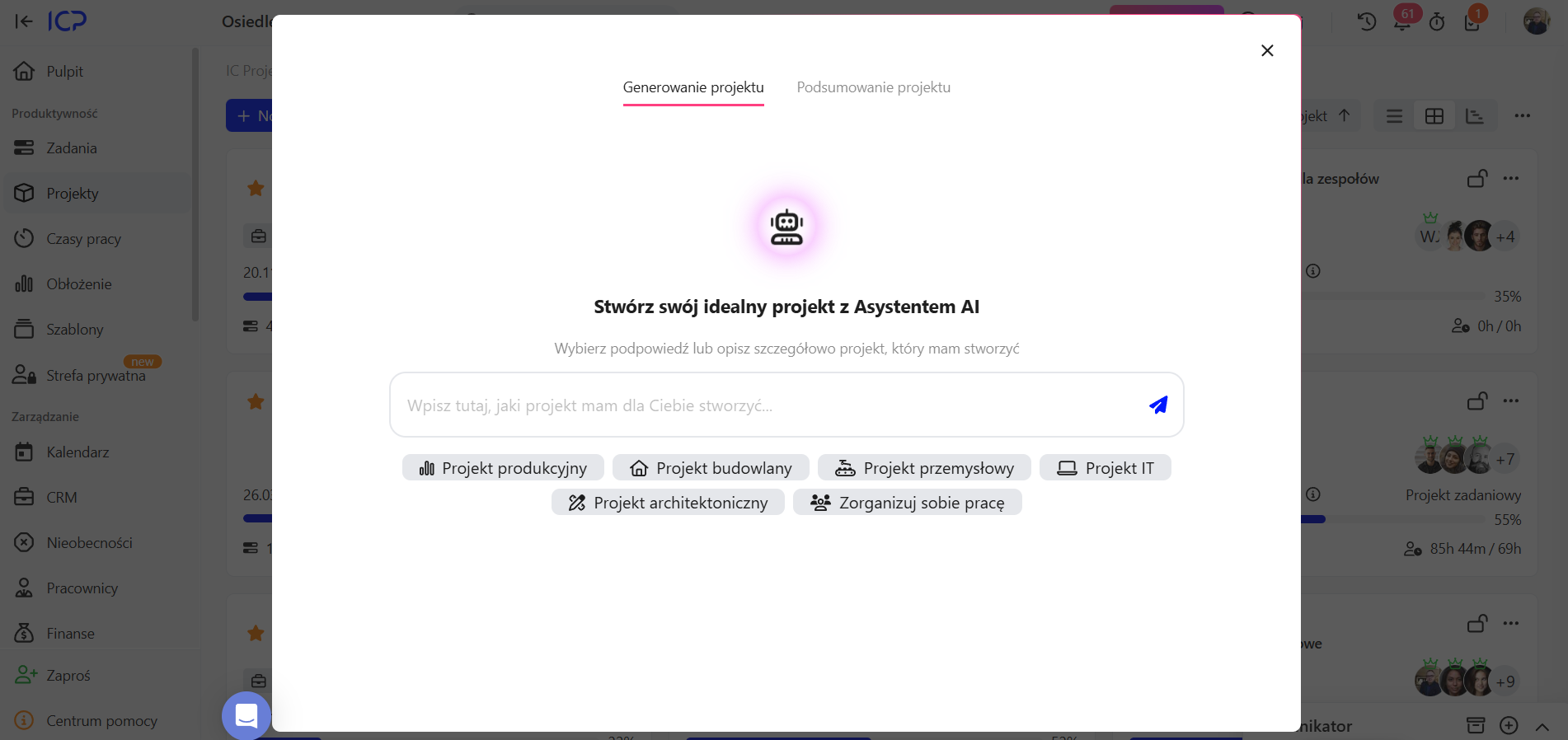
The AI Assistant currently offers two main modules to streamline your work:
- 🚀 Project generation — quickly build a project structure with the AI Assistant.
- 📊 Project summary — quickly generate summaries for selected projects and date ranges.
This guide focuses on the first module and shows, step by step, how to use the AI Assistant to create a project structure.
Module 1: quickly building a project with the AI Assistant
Creating a new project structure has never been so simple and fast. The AI Assistant guides you through the process, asks key questions and tailors its suggestions to your needs.
Step 1: define the project goal
After opening the feature in the system, you will see a view where you need to give the AI Assistant the key information: what you want to create and what kind of project it should be.
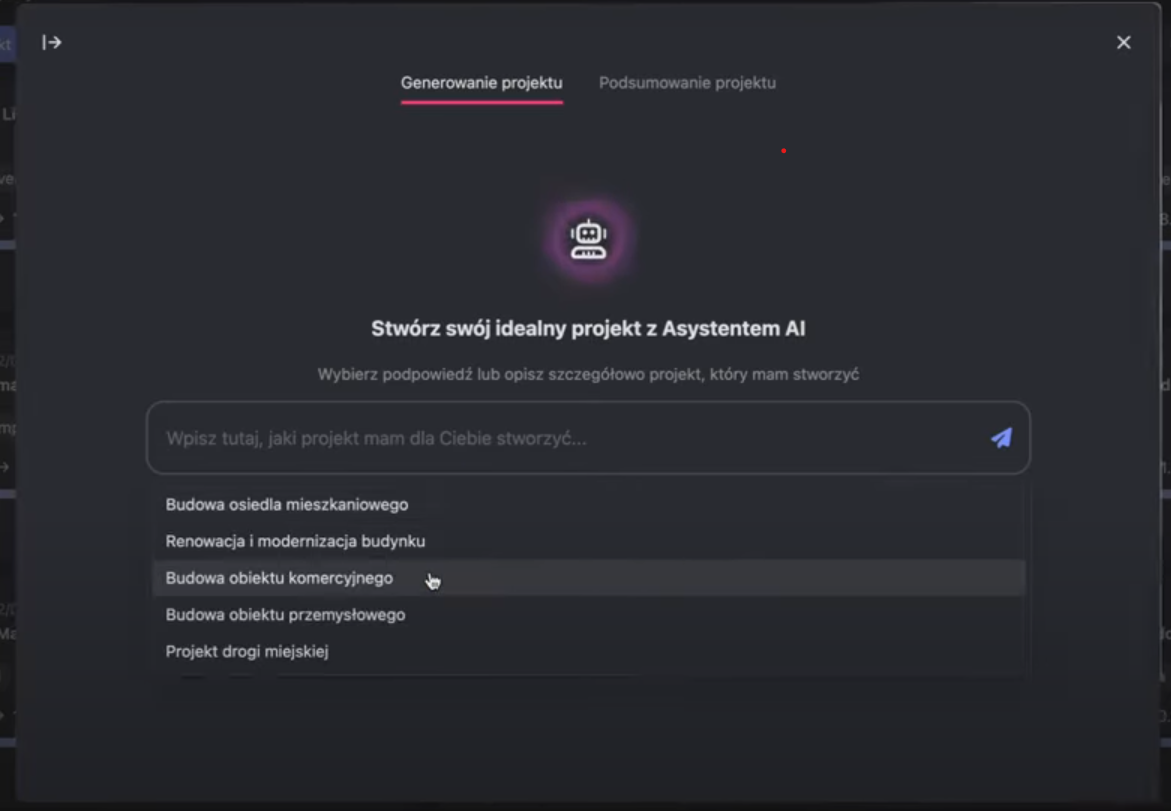
- Use suggested options: there are many suggestions to help you choose a project type quickly.
- Enter your own idea: if the suggestions do not meet your needs, enter your own information to describe exactly what you want.
Example: select “Construction of a commercial building”.
Step 2: clarify the project goal
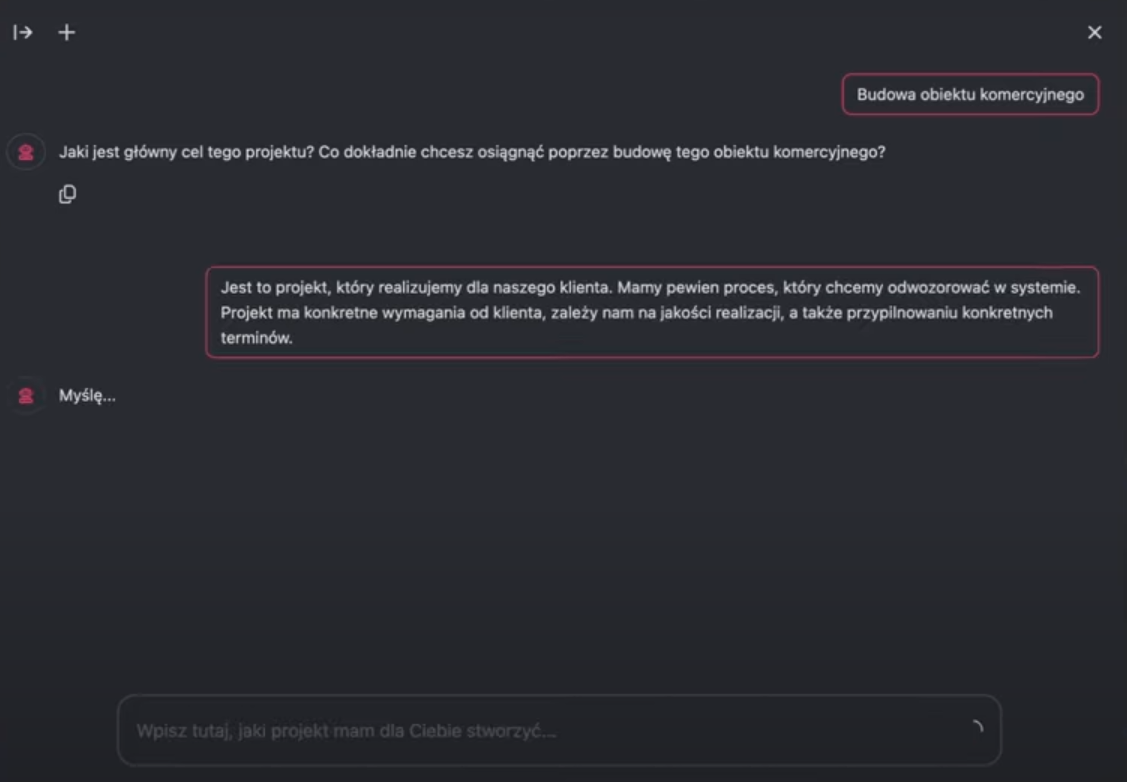
The AI Assistant now asks about the project goal. Explain how the project should work and what its key elements are. The more detail you provide, the better the result.
The AI Assistant works best with detailed input and feedback. The aim is to make the structure as precise as possible.
Tip: provide as much relevant information as possible to get the best result.
Example: we are delivering a project for a client and want to represent a process in the system. We need to meet specific client requirements, maintain high quality and keep to deadlines.
Step 3: define the key project stages
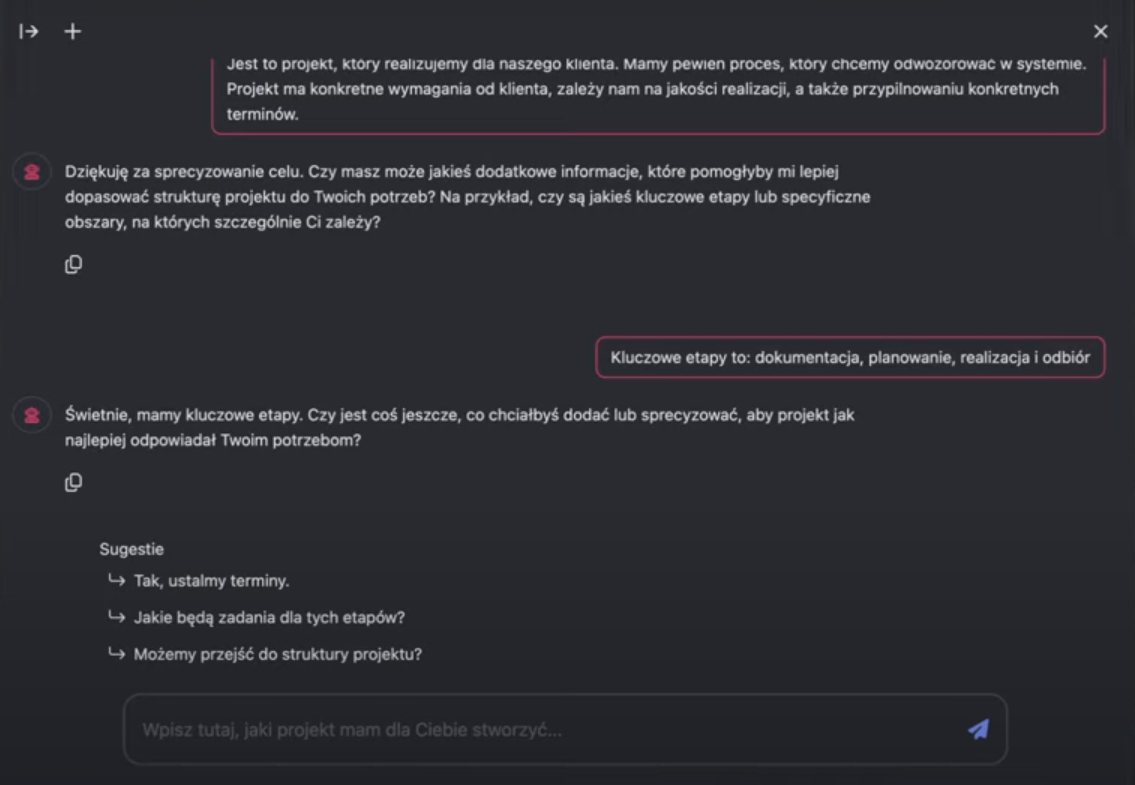
The AI Assistant asks about the key stages or specific areas that matter most to you. If you have already defined them, this is the right time to enter them.
Example: the key stages are Documentation, Planning, Execution and Acceptance.
Step 4: add more information (optional)
Is there anything else to add or clarify? This is your final opportunity to refine your expectations before moving to the next step. If everything is ready, continue.
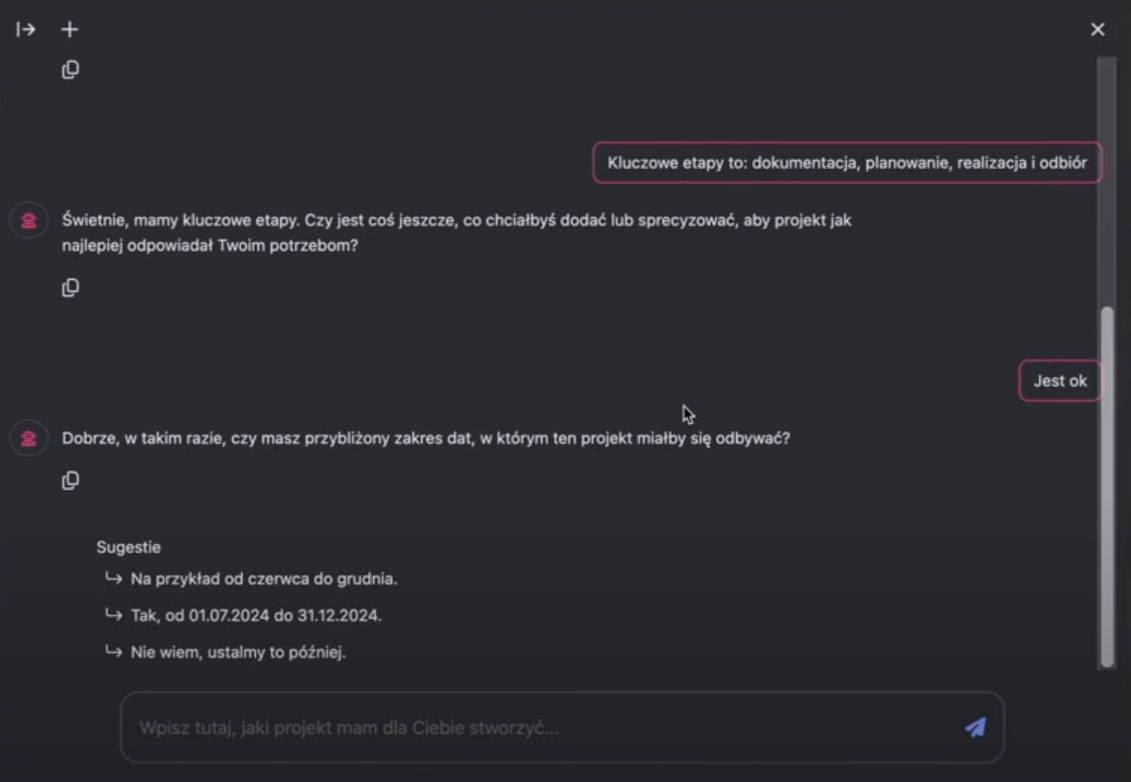
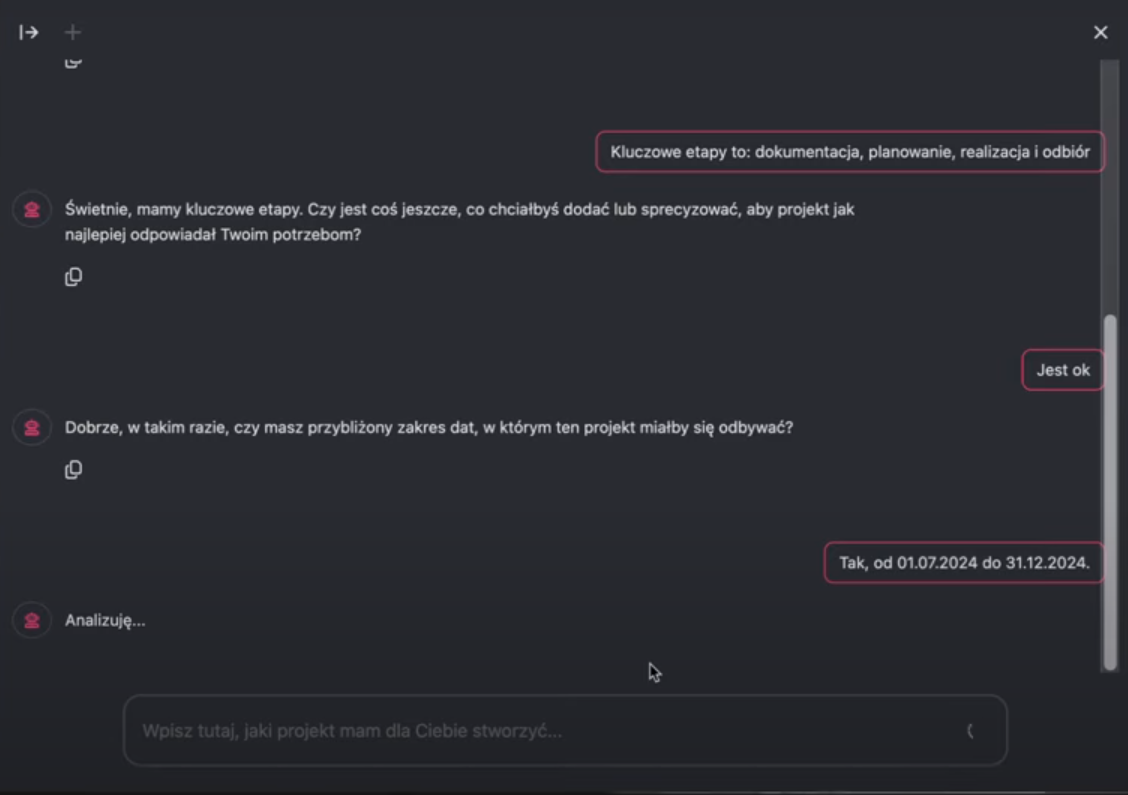
Step 5: give an approximate project date range
The AI Assistant builds the structure with stages, boards and tasks, and automatically adjusts dates for each element. Specify when the project should start and end.
Tip: share any additional scheduling details with the AI Assistant.
Example: project start: 1 July 2024; project end: the end of 2024.


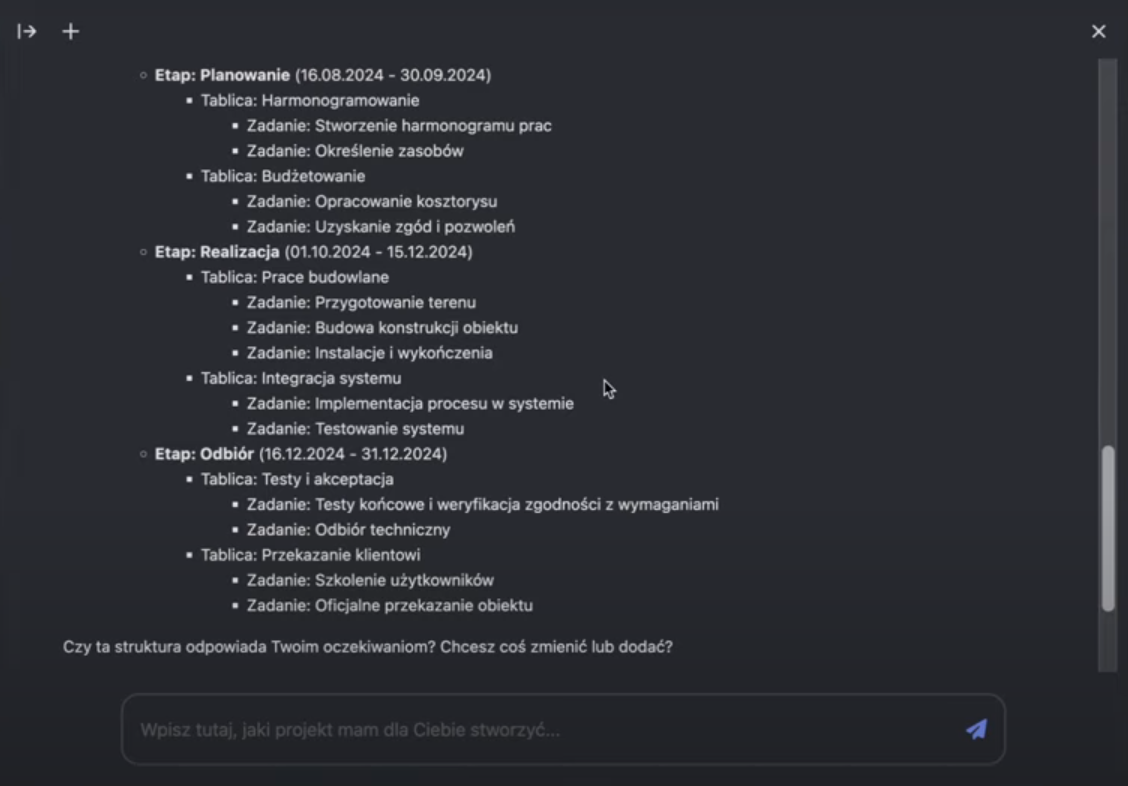
Previewing and adjusting the project structure
After you provide the details, the AI Assistant quickly generates an initial project structure and displays it on screen.
- Check the stages: make sure stages such as Documentation, Planning, Execution and Acceptance meet your expectations.
- Time frames: you will also see the time frames defined throughout the structure.
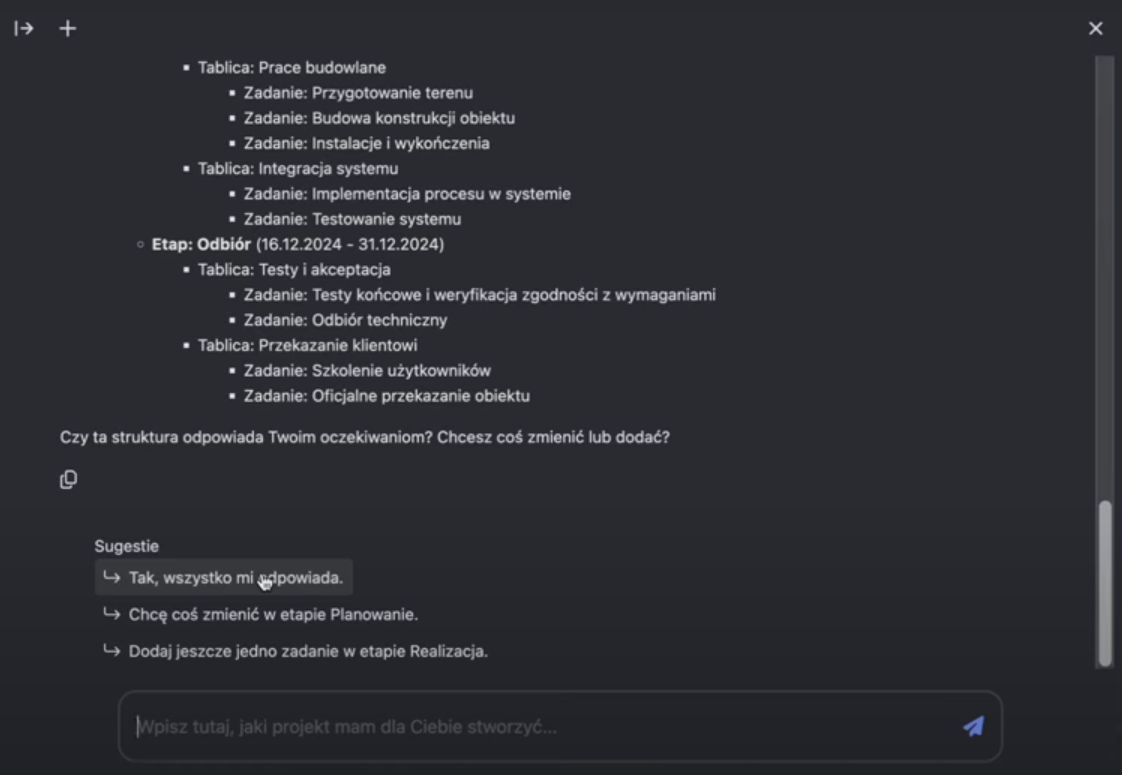
Refining the structure through conversation
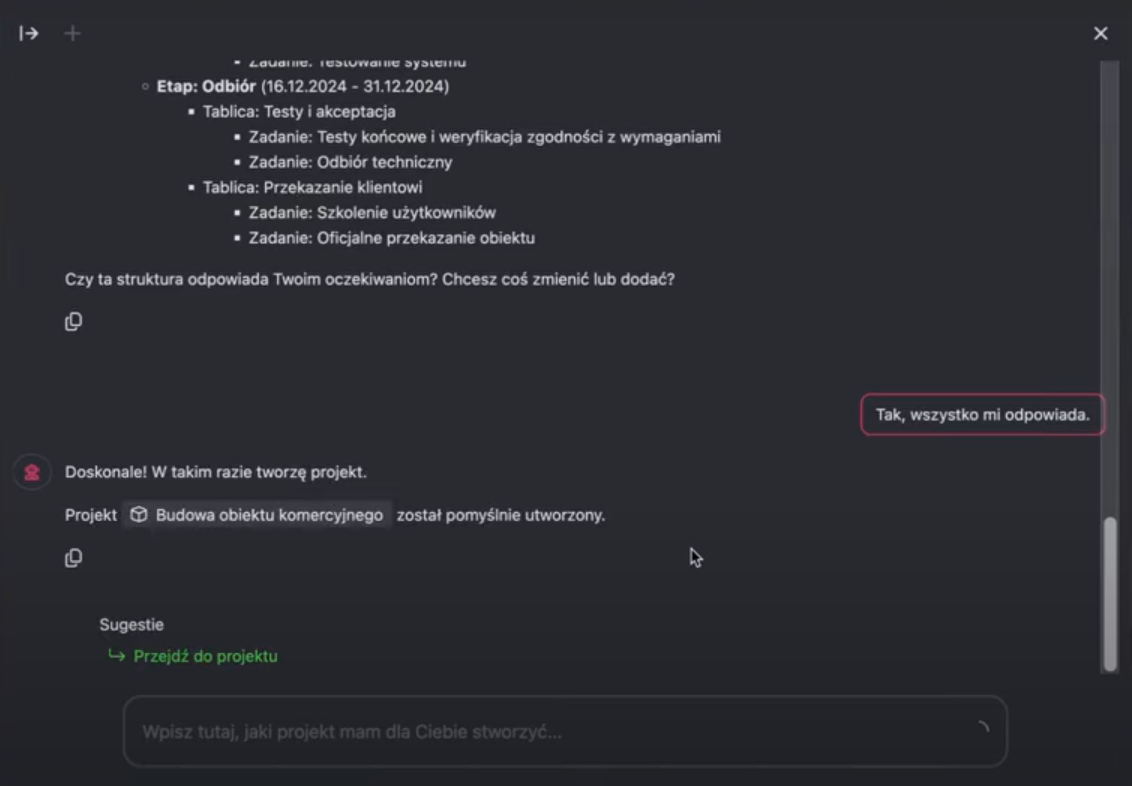
Until you add the project to the system, you can adjust every element. The AI Assistant asks: “Does this structure meet your expectations? Would you like to change or add anything?”
This is the right moment to:
- Refine each stage: discuss anything that does not fit and ask the AI Assistant to change it.
- Go back or clarify: if your initial information was incomplete or misunderstood, you can now refine it to create the right project structure.
Working with AI gives you many possibilities. Use the conversation to refine your structure.
Adding the project to IC Project
Once the structure fully meets your expectations, click the appropriate suggestion. The AI Assistant then adds the entire project to IC Project.
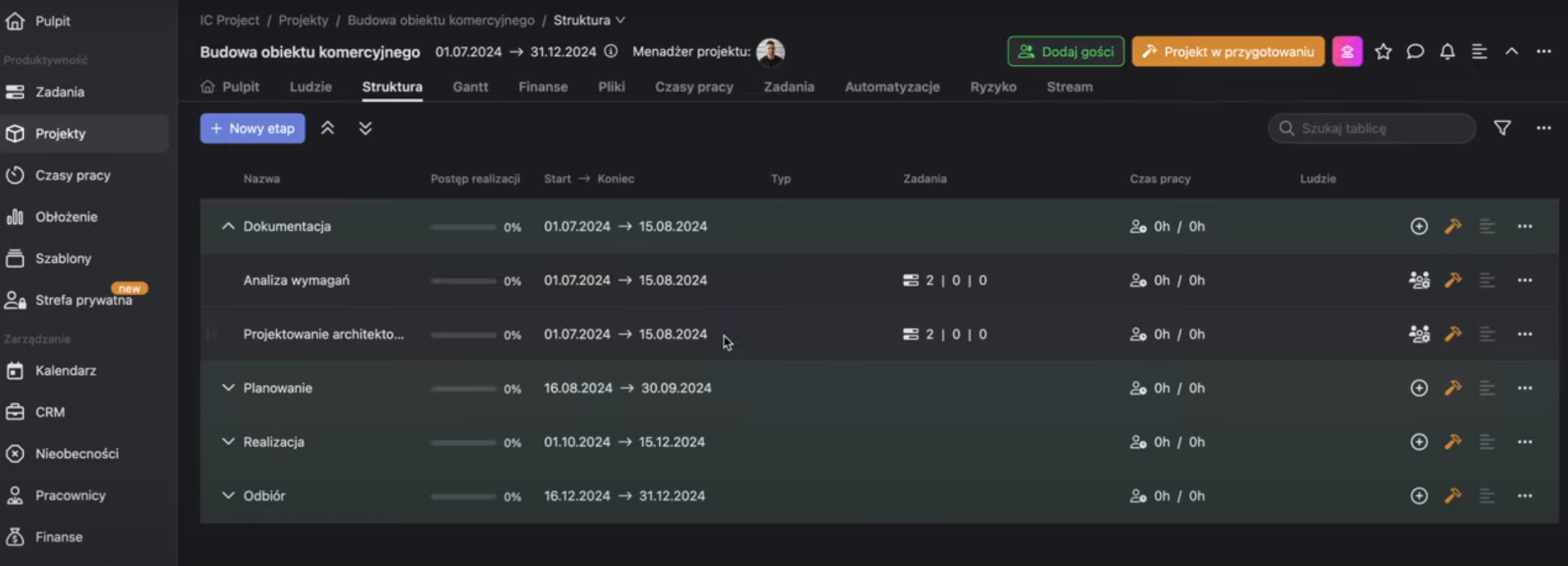
The final structure in the system
When you open the newly created project, you will see that:
- Time frames have been adjusted for the stages (documentation, planning, execution and acceptance), individual task boards and tasks.
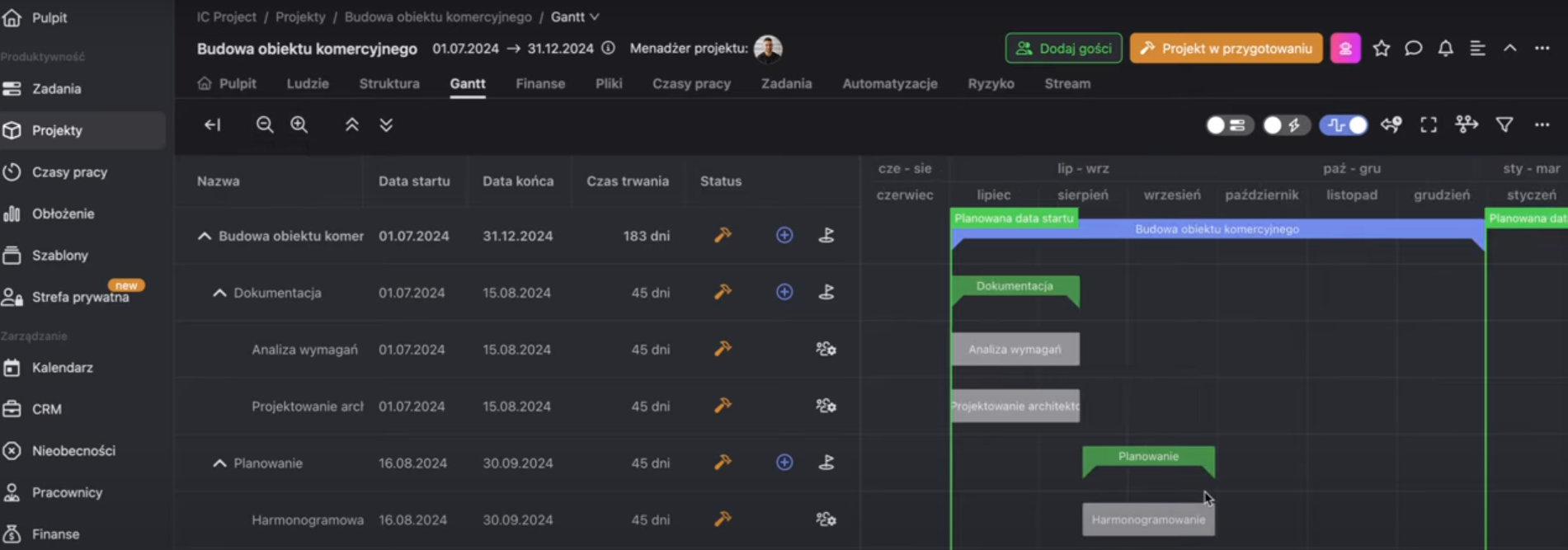
- You can adjust dates freely on the Gantt chart using IC Project's tools to refine the schedule.
AI Assistant efficiency
The AI Assistant does 80–90% of the work by building a solid initial project structure. Our goal is to keep improving this process.
Important tip: for the best results, build your project in stages. Do not give the AI Assistant all the information at once. Break the process into smaller parts: board by board, task by task. This approach helps you create a project workflow that is almost a 100% fit for your company.
The AI Assistant helps you create a complete project structure with dates in just a few clicks!
Thank you for exploring the AI Assistant. We look forward to your feedback, which is valuable as we continue developing this feature.
Have questions or need more guidance on the AI Assistant? Let us know!